How do I share my calendar with someone?
You cannot grant users from UMB, UMM or FPI, or anyone outside of SOM, edit access to your calendar. This is a Microsoft limitation and not one that we have any control over.
Although you can share your calendar from Outlook Classic and Outlook for Mac, it is recommended that you share your calendar using Outlook in a web browser. In our current environment with multiple versions of Outlook, it is the most compatible with all of them.
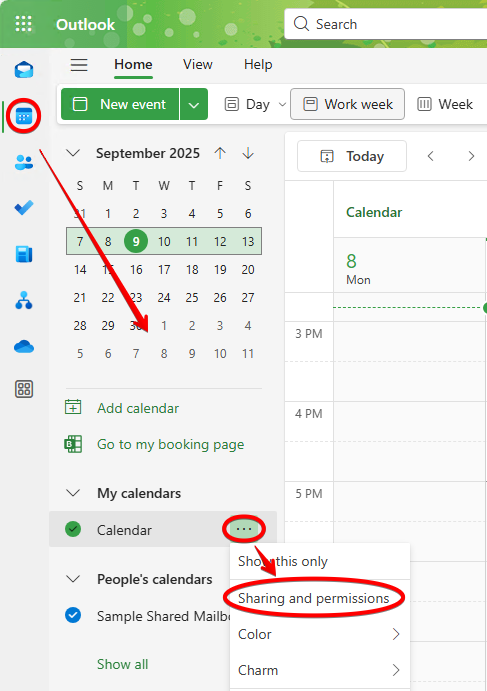
Click the calendar icon on the left. Click the ellipses next to the calendar you'd like to share, then click Sharing and permissions.
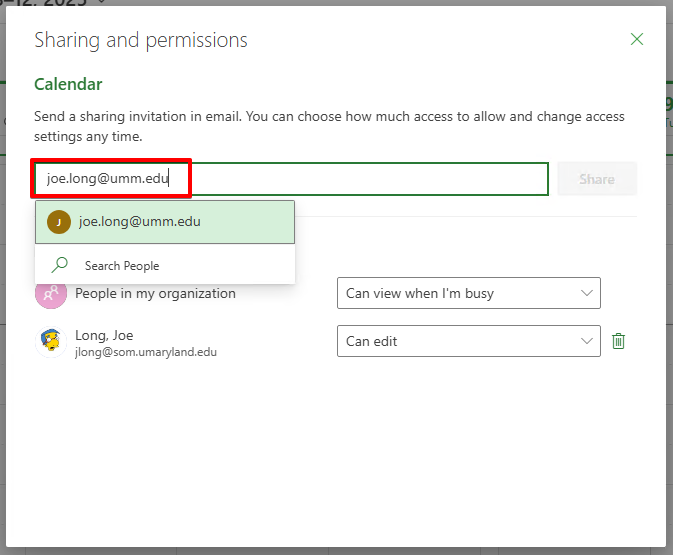
Type in the name or email address of the person you'd like to share with.
Now choose the sharing level and click Share.
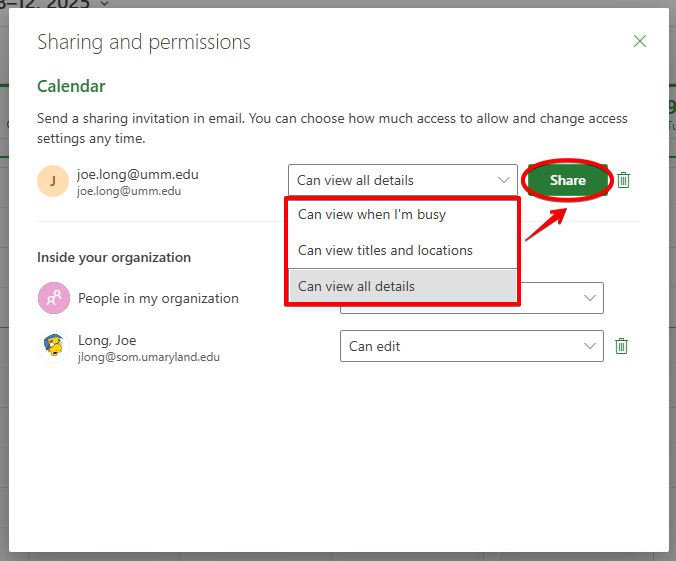
Can view when I'm busy = Only blocks of time when you are not available, also known as free/busy. Our partner organizations have this level of sharing by default.
Can view titles and locations = Titles and locations, but no details, notes or attachments of your meetings.
Can view all details = Can see all details of your meetings. Will not be able to see details of meetings marked as private.
Only available when sharing with SOM users:
Can edit = Can edit all aspects of all of your meetings
Delegate = User will receive a copy of all of your meeting requests, and can RSVP on your behalf.
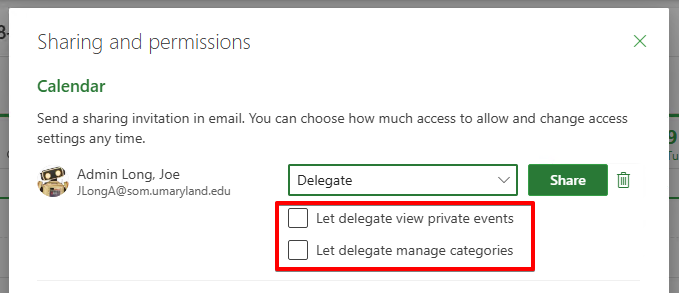
Delegate sharing also has the following options:
Let delegate view private events = Shows the details of events that you've marked private.
Let delegate manage categories = Refers to the color categories you can assign to meetings and emails.
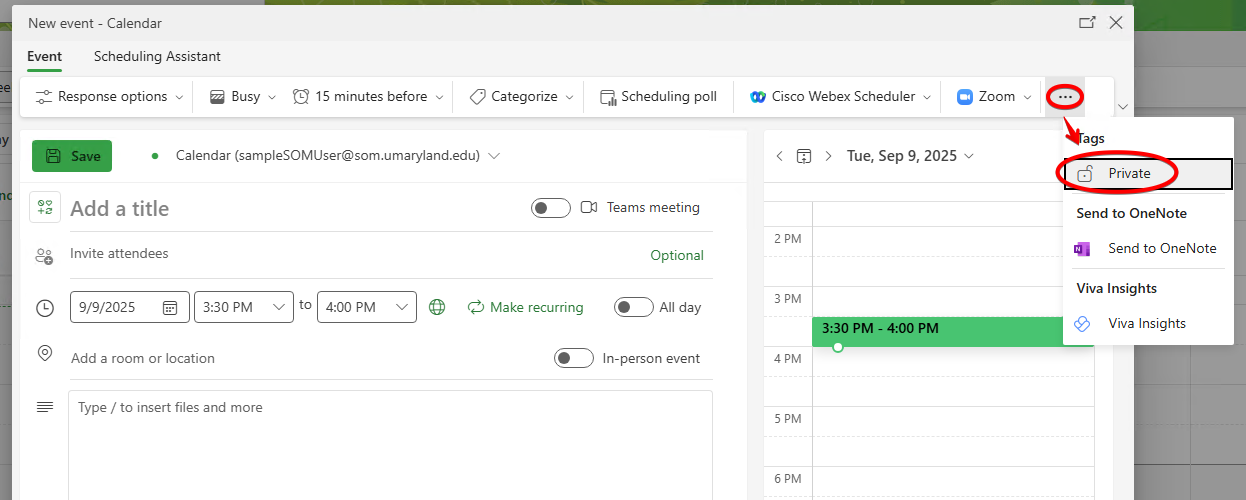
Unfamiliar with private events? This is how you mark something as private.
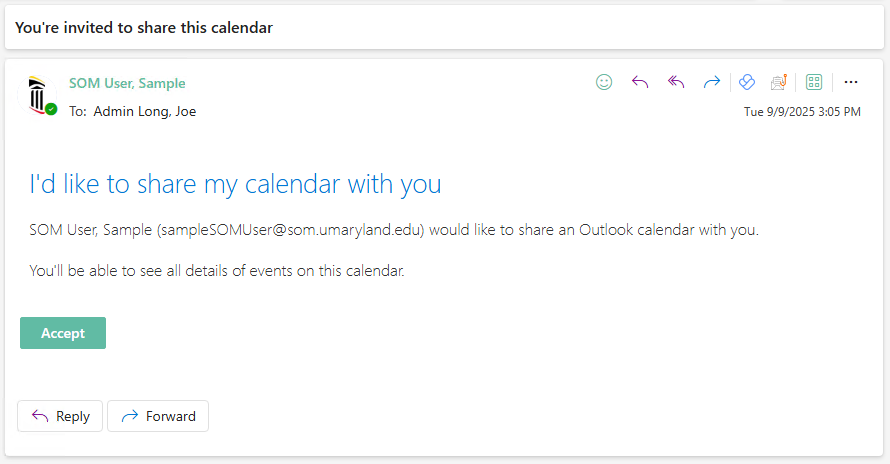
Finally, when you share a calendar through Outlook in a web browser, the user will receive an email that looks like this: