
Using OneDrive, Teams & Sharepoint
If you're looking for a breakdown of storage limits for all of SOM's file storage options, please see the main page.
In this article [jump to a section]:
Understanding OneDrive, Teams & Sharepoint
Sharepoint is Microsoft's online storage platform. Each Sharepoint site you've visited has its own library of documents. Sharepoint is the backbone for OneDrive and Teams, also. OneDrive is essentially just a personal Sharepoint site. Each Teams site is also a Sharepoint site. Think of Teams as an interface or skin over Sharepoint, which combines Sharepoint's file storage with newer features such as messaging and chat.

OneDrive Storage
OneDrive grants each user 5TB of storage. If you require more storage, consider creating a Teams site where you are the only member.
To see how much storage you've used, log in to OneDrive.
Click the gear icon and go to OneDrive settings.
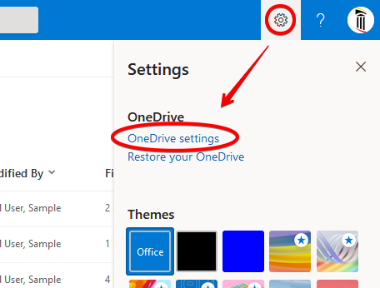
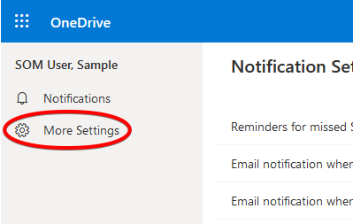
On the left, click More Settings.
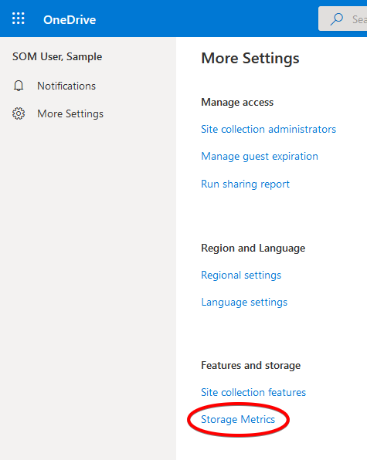
Now find Storage Metrics.
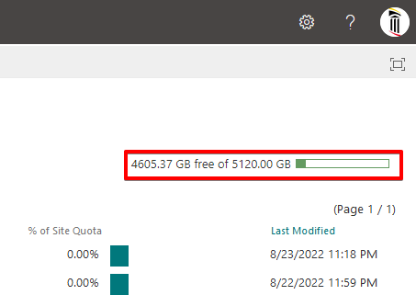
Here we've used about 500MB and have 4.6TB of free space left.
Teams Storage
Each Teams site offers 25TB of storage. This can be increased - with caveats. First, let's determine how much space a Teams site uses. This can only be done by the owner of a Teams site.
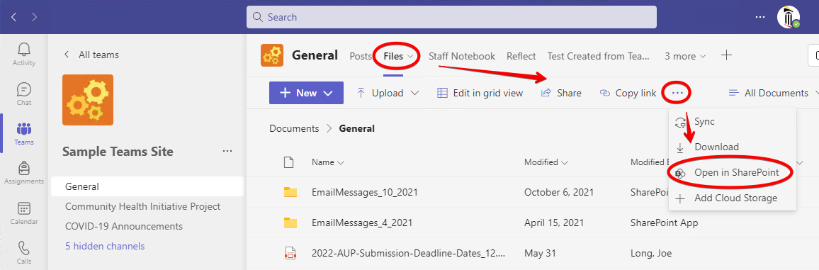
Navigate to your Teams site, click on the General channel, then Files, and Open in Sharepoint. Open in Sharepoint may be hidden behind ellipses if your Teams window is not full screen.
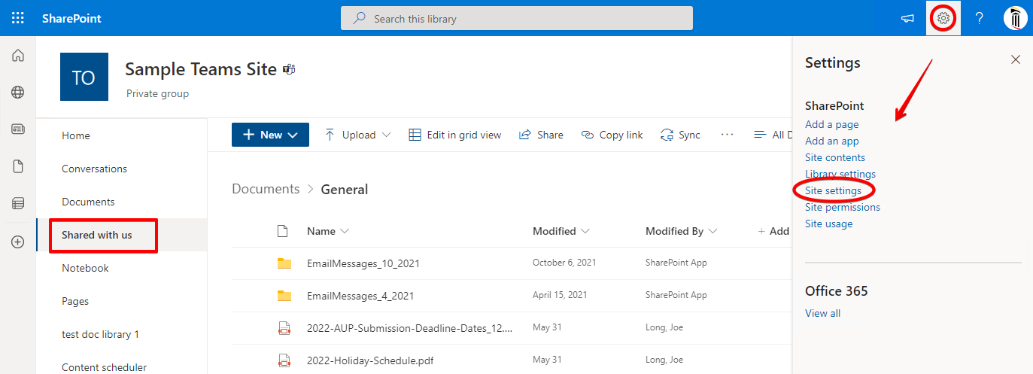
This will open the Teams site's corresponding Sharepoint Document Library in a web browser. You should be on the Shared with us page. Click on the gear icon and go to Site settings.
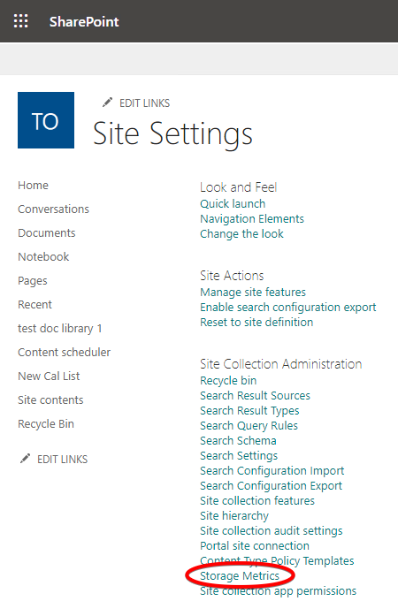
Click on Storage Metrics.
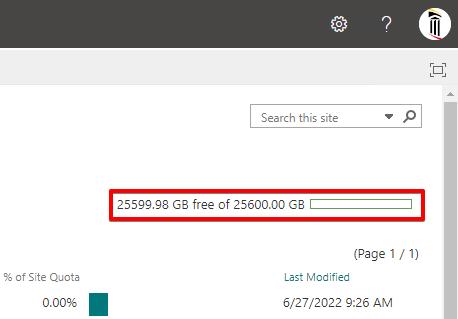
In the upper right-hand corner, we can see how much storage we've consumed. Here we've usually used virtually none of our storage so far.
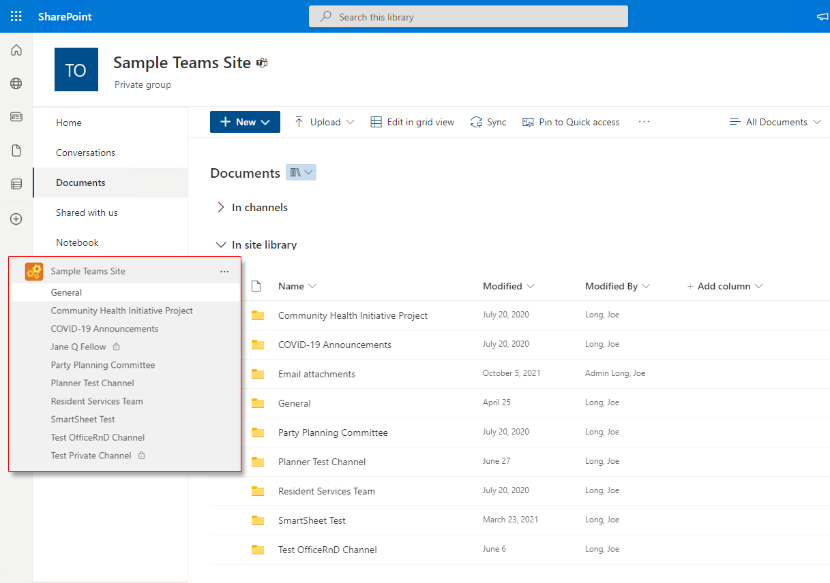
Now let's see how Teams channels relate to its Sharepoint Document Library. Here is a Teams site and its channels overlaid on top of Sharepoint. You can see how each public channel is just a subfolder in the Sharepoint Document Library. This means that your 25TB is shared amongst each of your public channels.
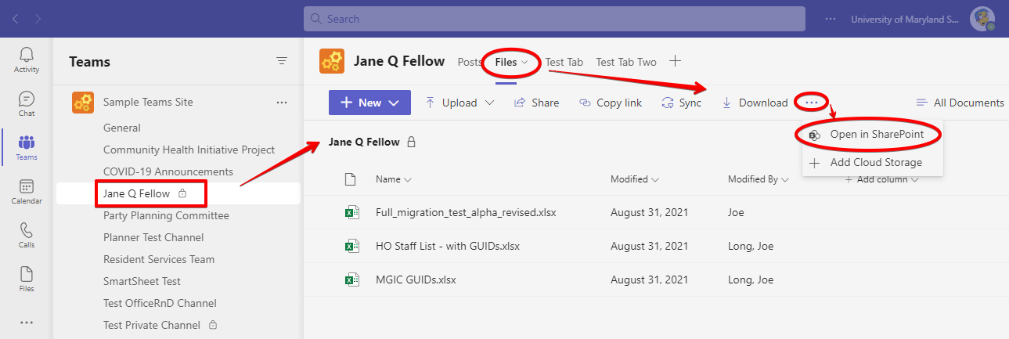
The private channels, however (those with a tiny lock next to them), are not shown here. Let's go back to Teams, select one of those private channels, and open its files in Sharepoint.
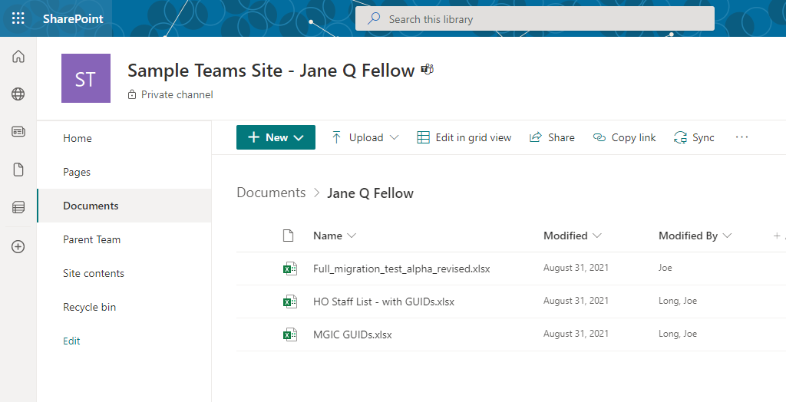
And we can see that it opens in its own Sharepoint Document Library. Each private channel has its own Document Library, and thus has its own 25TB of storage.
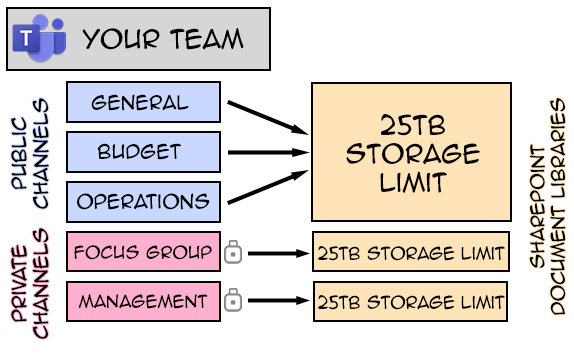
To summarize, each Teams site provides 25TB storage, distributed amongst all of its public channels. Each private channel provides an additional 25TB, but is only available to that specific channel. Here's a diagram to illustrate:
Time Limits for Deleted Files
When an M365 file is deleted, it is held in the Recycle Bin for a time before moving to the Second-stage Recycle Bin for a time. Eventually, it is not accessible to users at all, but it is still preserved through a mechanism called Litigation Hold. SOM IS can usually still retrieve documents at this point. Please see the workflow below.
| File is held in | Recycle Bin | Second-stage Recycle Bin | Litigation Hold |
|---|---|---|---|
| File stays here for | 93 days | 93 days | Indefinitely |
| Can be retrieved by | User | User | SOM IS |
Restoring via Previous Versions
If a document has been changed and you need an earlier version of it restored, use Previous Versions.
Go to the Team. Click Files > Open in Sharepoint.
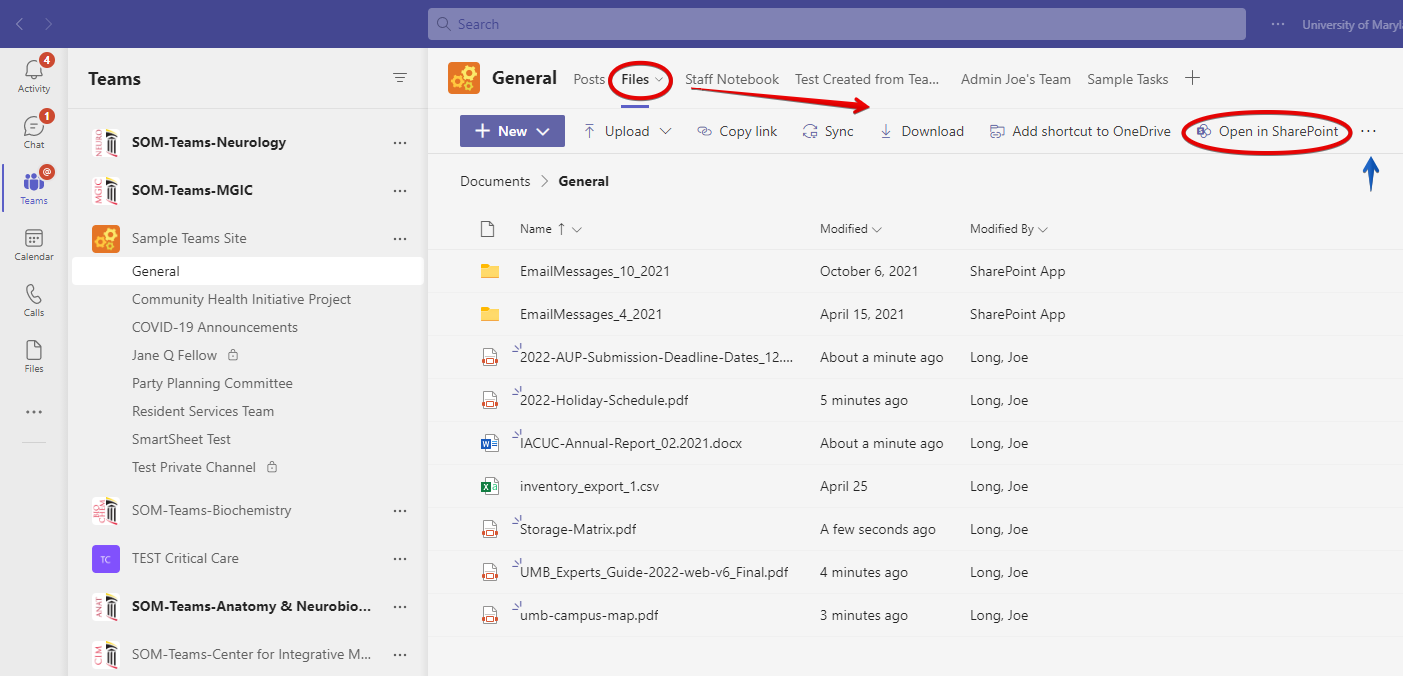
Now follow along with the rest of the Sharepoint walkthrough.
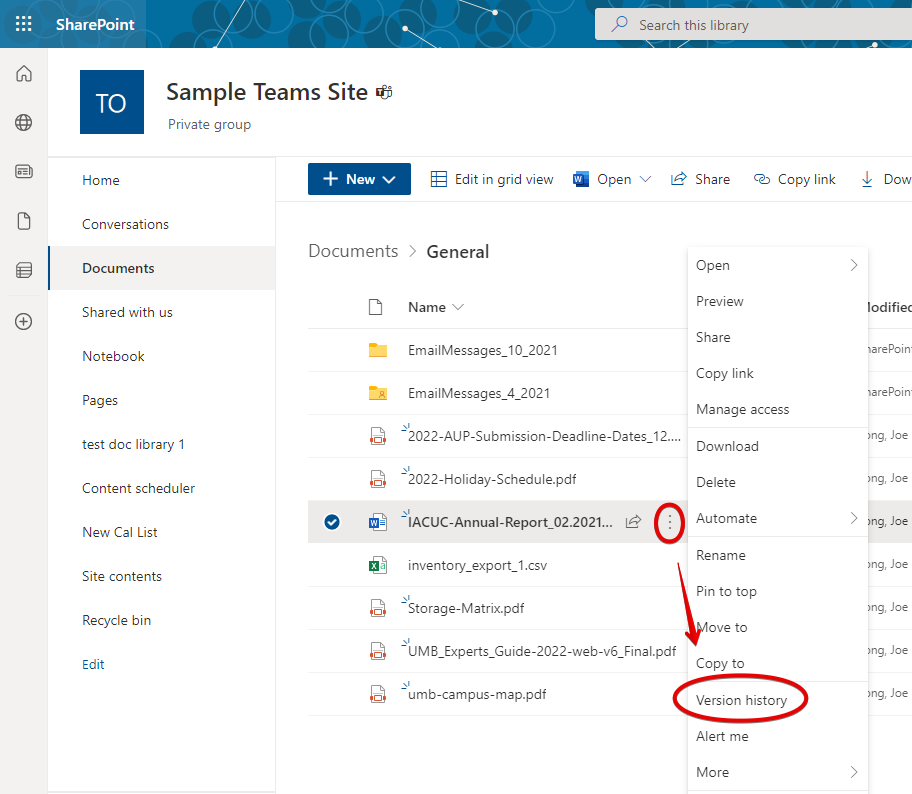
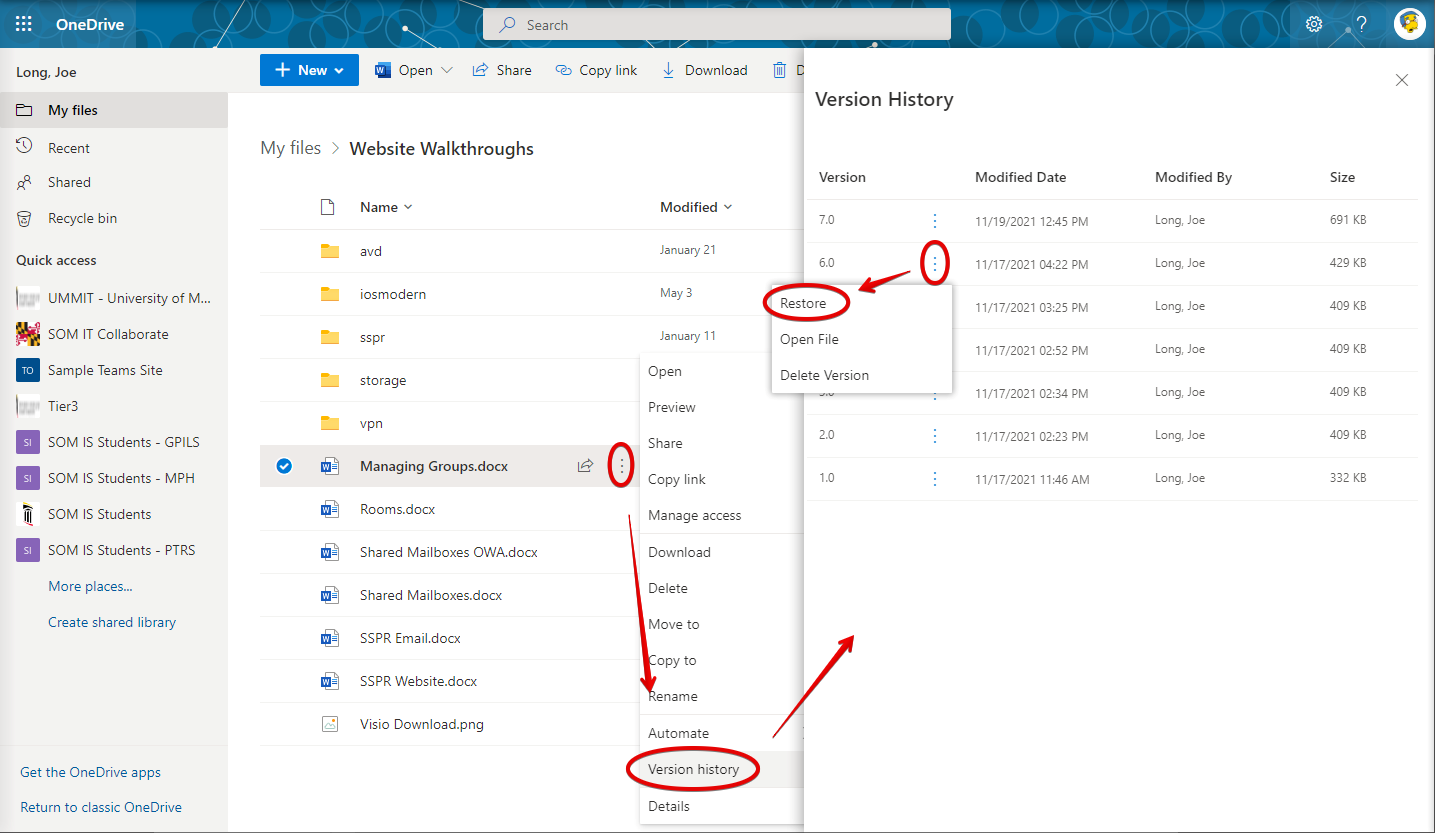
Click the three vertical dots next to a file and go to Version History.
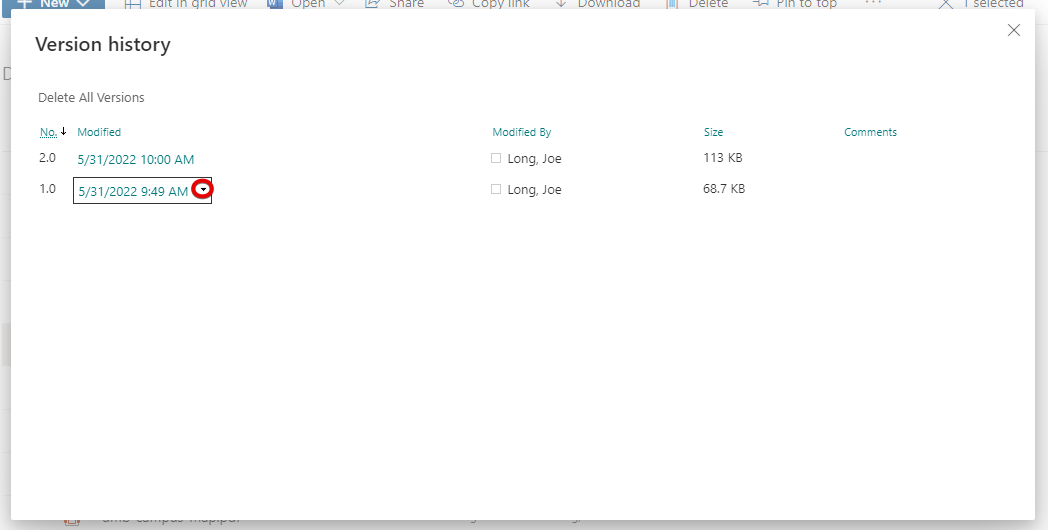
 Here you'll see a list of versions of the file. Hover over one of the dates. An arrow will appear.
 Click the arrow, and you can View the file, Restore it, or Delete this version.
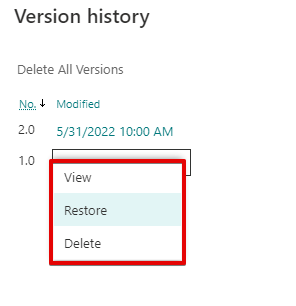
Though it looks slightly different, the Previous Versions workflow for OneDrive is the same as Sharepoint. Click the three vertical dots next to a file > Version History > three dots > Open File or Restore.
Restoring via Recycle Bin
If a file has been deleted, recover it from the Recycle Bin.
Go to the Team. Click Files > Open in Sharepoint.
Now follow along with the rest of the Sharepoint walkthrough.
Find Recycle Bin on the left. Select a file and click Restore. It will be restored to its restored to its original location.
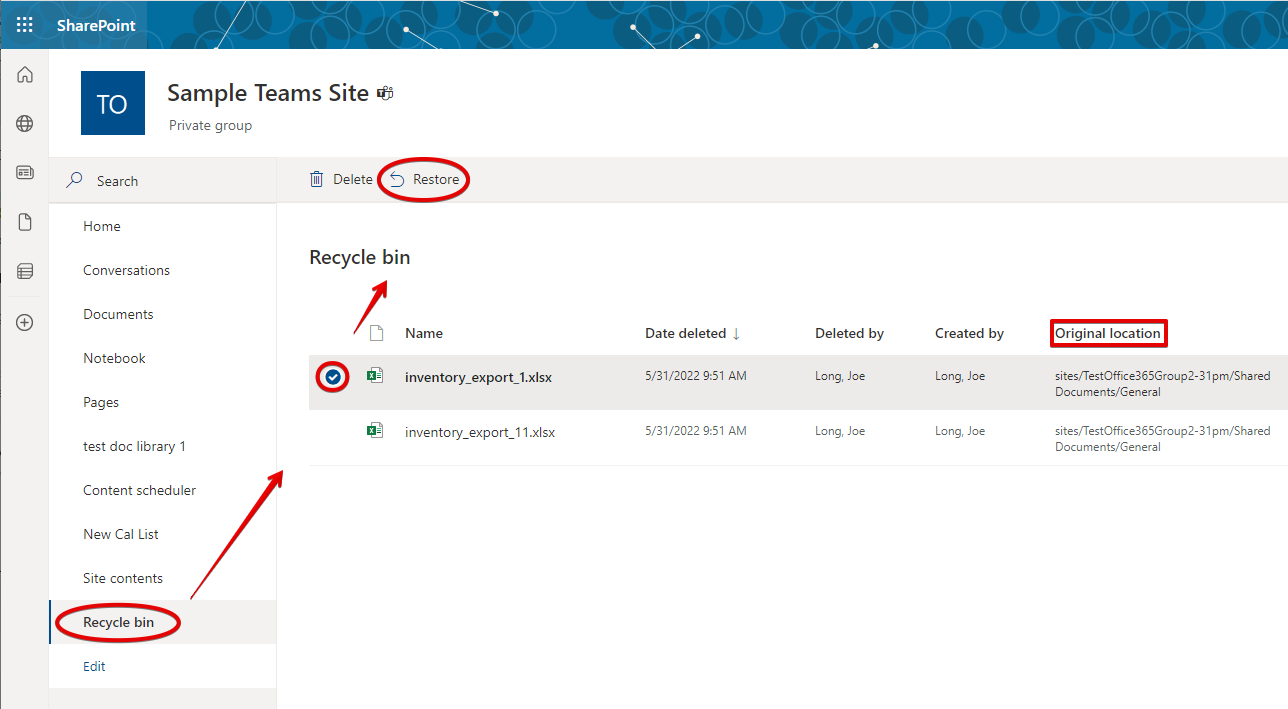
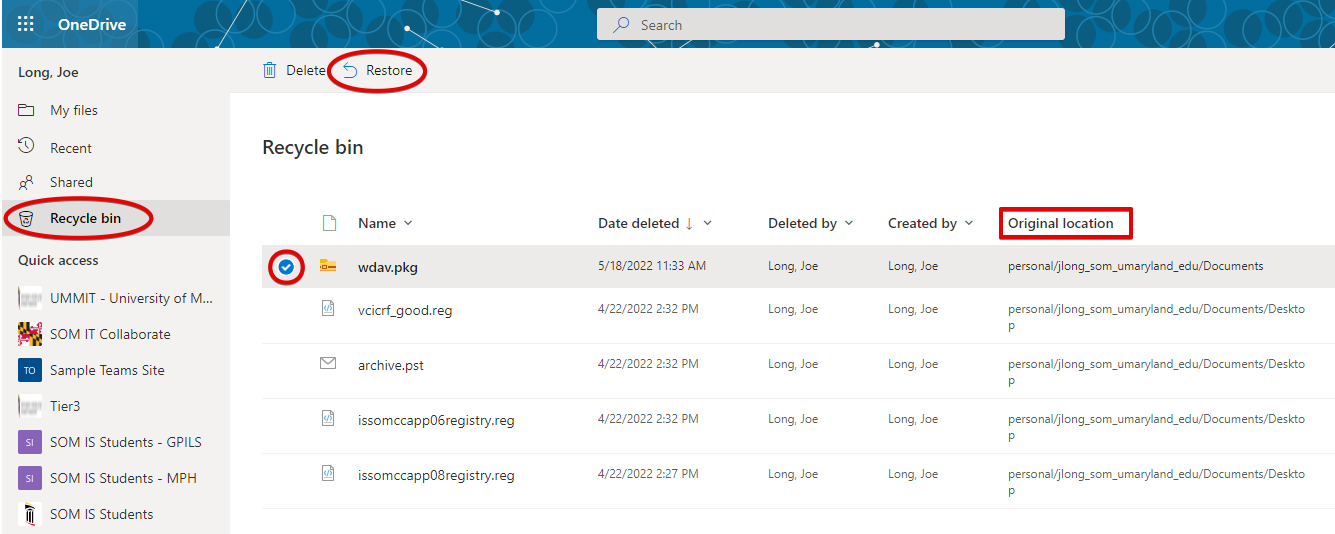
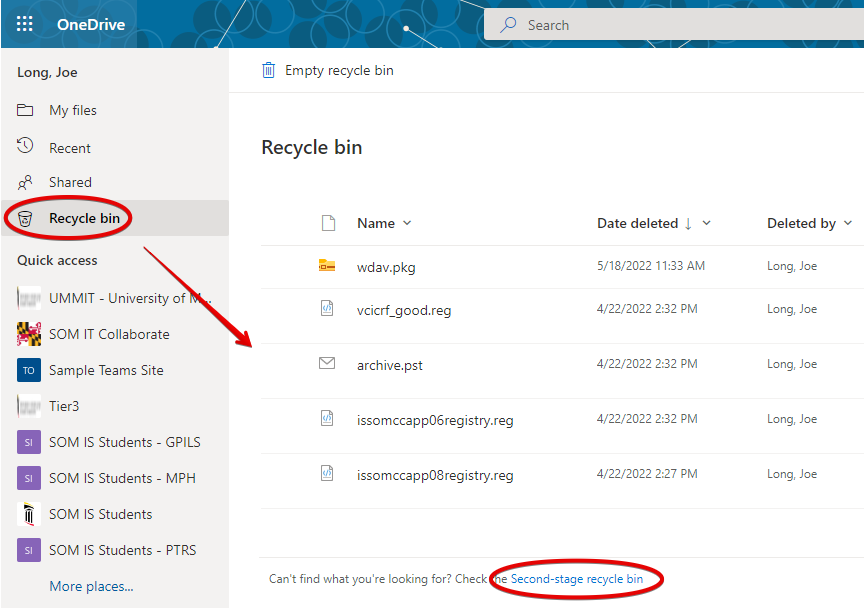
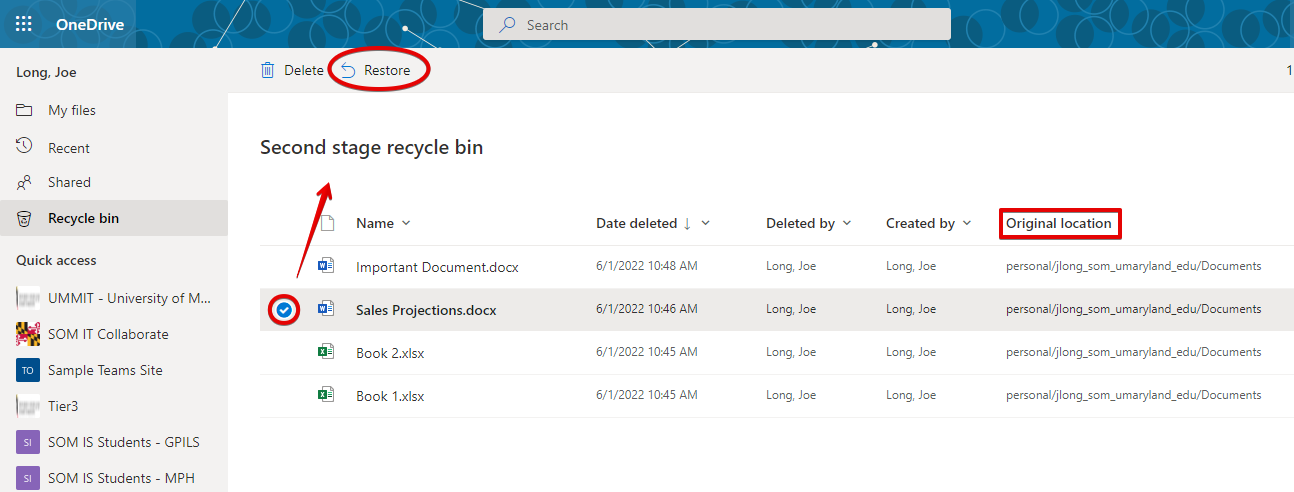
The Recycle Bin workflow for OneDrive is the same as Sharepoint. Find Recycle Bin on the left. Select a file and click Restore. It will be restored to its original location.
Second-stage Recycle Bin
If an item is deleted from the Recycle Bin, it goes into the Second-stage Recycle Bin next.
Go to the Team. Click Files > Open in Sharepoint.
Now follow along with the rest of the Sharepoint walkthrough.
Find Recycle Bin on the left. Now find Second-stage recycle bin at the bottom of the screen.
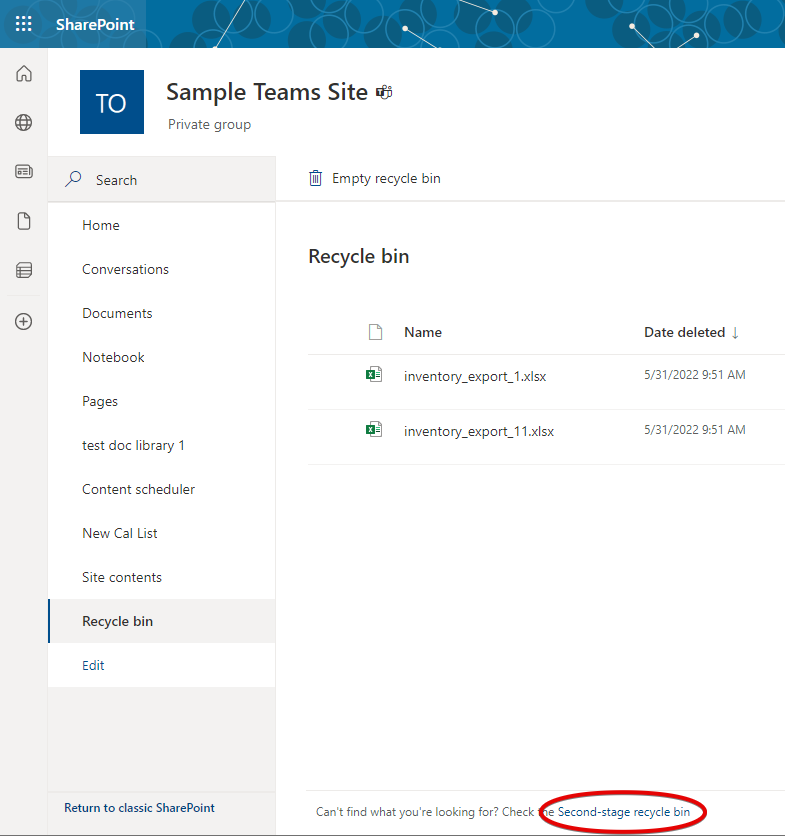
Select an item, and click Restore to send it to its Original location.
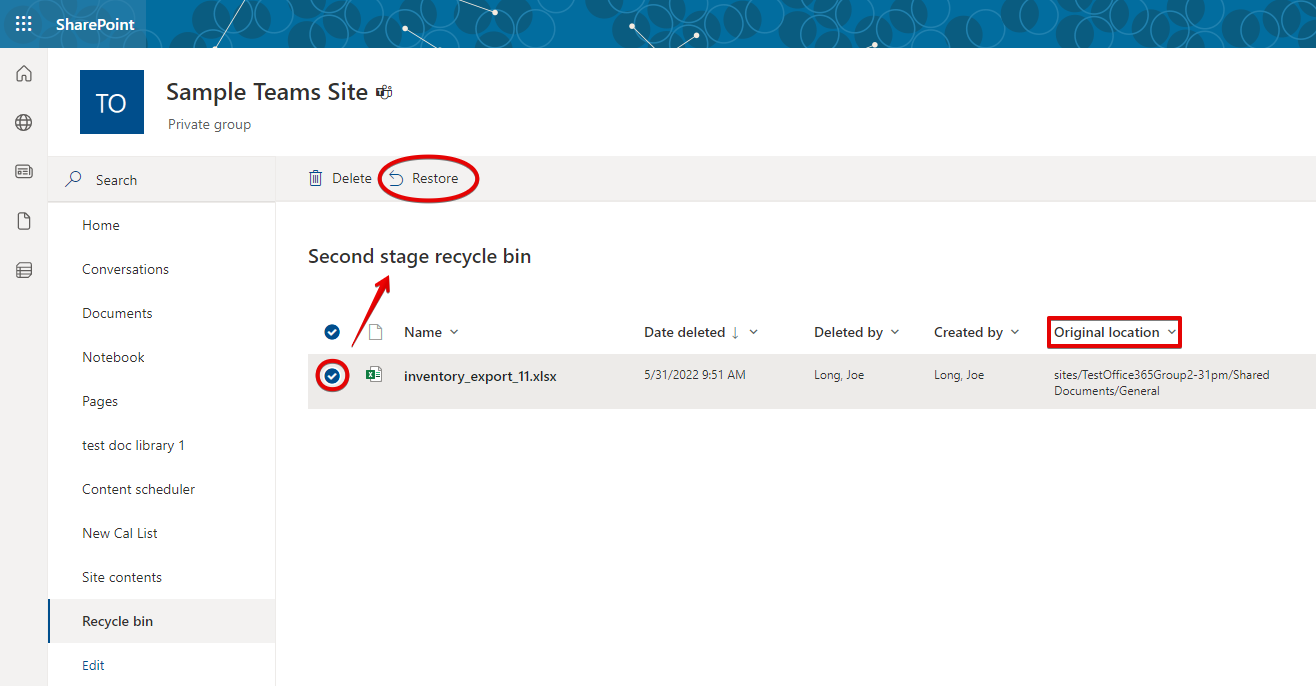
Find Recycle Bin on the left. Now find Second-stage recycle bin at the bottom of the screen.
 Select an item, and click Restore to send it to its original location.
Recover Lost Files
If your files cannot be found in either the Recycle Bin or Second Stage Recycle Bin, please open a helpdesk ticket and give us as much information as you can about the missing file, such as name, last known location, file type, date deleted, etc.