Microsoft Authenticator is Microsoft's native multifactor authentication (MFA) tool. Microsoft Authenticator is an app that can be installed on your smartphone, and can be used to verify your identity while logging in to M365, and while using Self Service Password Reset (SSPR).
In this article [jump to a section]:
DUO vs Microsoft Authenticator
DUO and Microsoft Authenticator are both apps that can satisfy a multifactor authentication challenge. UMB and SOM rely on DUO as their primary MFA app, but Microsoft is increasingly integrating Microsoft Authenticator into the login and authentication processes for M365.
Authentication apps like DUO and Microsoft Authenticator are both much more secure than using an SMS text message to your cellphone to verify your identity. SMS text messages are vulnerable and are often exploited.
Additionally, DUO can be used for login authentication, but it cannot be used to verify your identity for Self Service Password Reset. While SOM allows SMS text messages for SSPR purposes for now, this will eventually be phased out in favor of Microsoft Authenticator.
You may need Microsoft Authenticator when accessing resources, such as Power BI dashboards, in other organizations like UMB, UMM or FPI. You'll need Microsoft Authenticator if you have an admin account, and you may need it if you travel and initiate a risky sign-in.
How to Set Up Microsoft Authenticator
First, download the app on your smartphone. Links can be found here:
https://www.microsoft.com/en-us/security/mobile-authenticator-app
Next, login into your Microsoft account on a computer. The direct link to the Security Info page is:
https://mysignins.microsoft.com/security-info
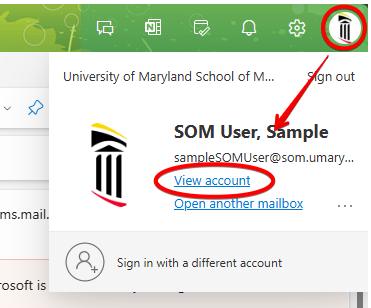
You can also get here from any M365 webpage by clicking on your icon in the upper right hand corner and then View Account.
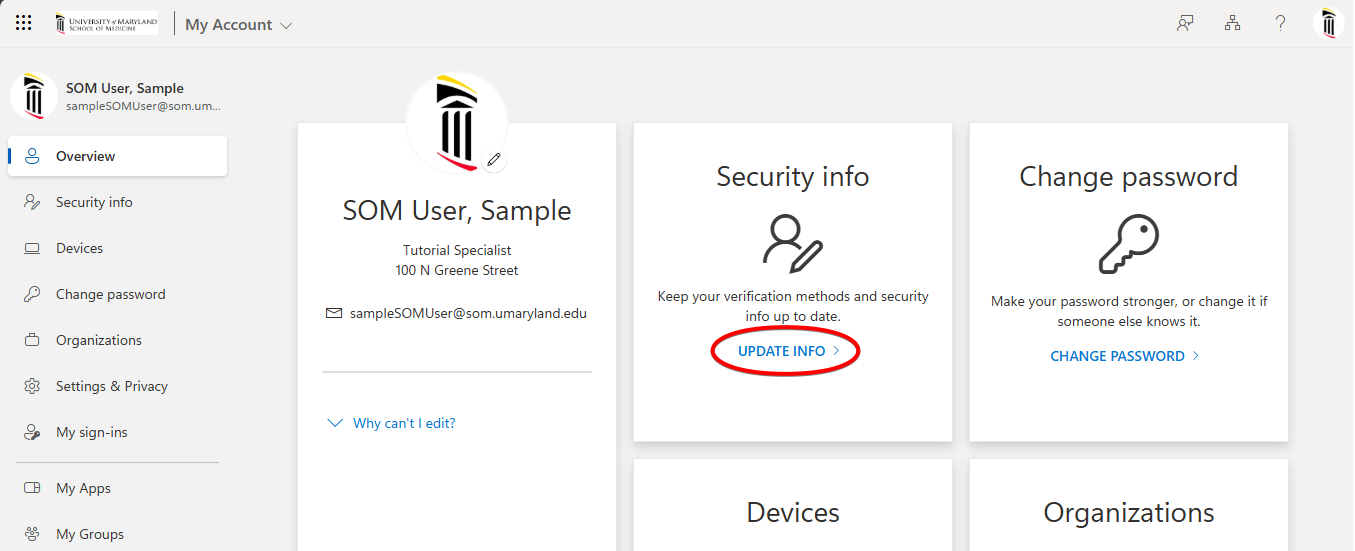
Next click Update Info under Security info.
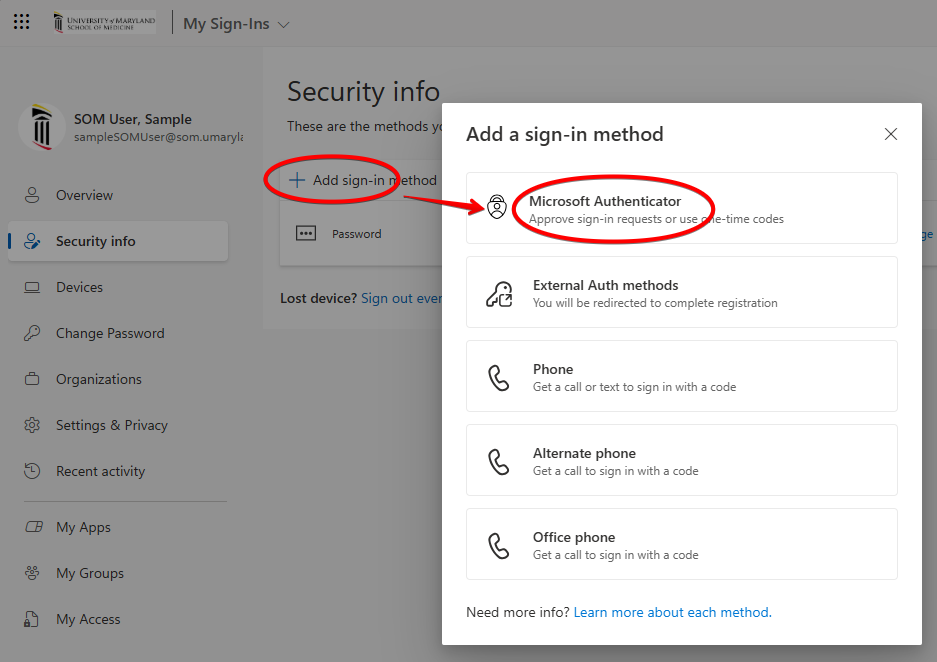
This will list all authentication methods you have verified so far. Click + Add sign-in method and choose Microsoft Authenticator.
Click Next at the prompt.
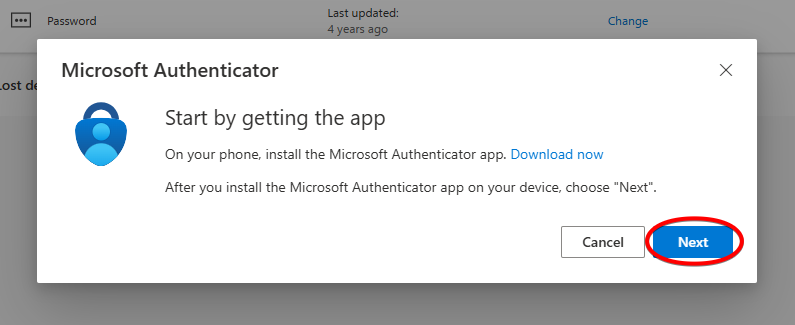
And Next again.
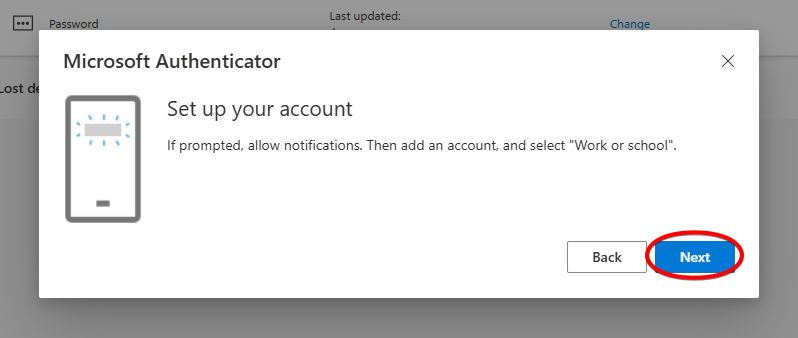
Finally it will generate a QR code.
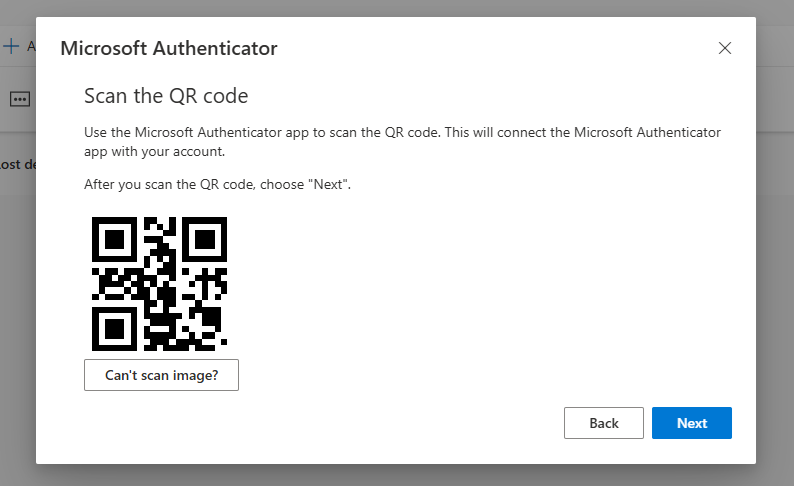
Open the Microsoft Authenticator app on your phone. Click the QR code icon in the bottom right hand corner, and scan the QR code that's on your screen.
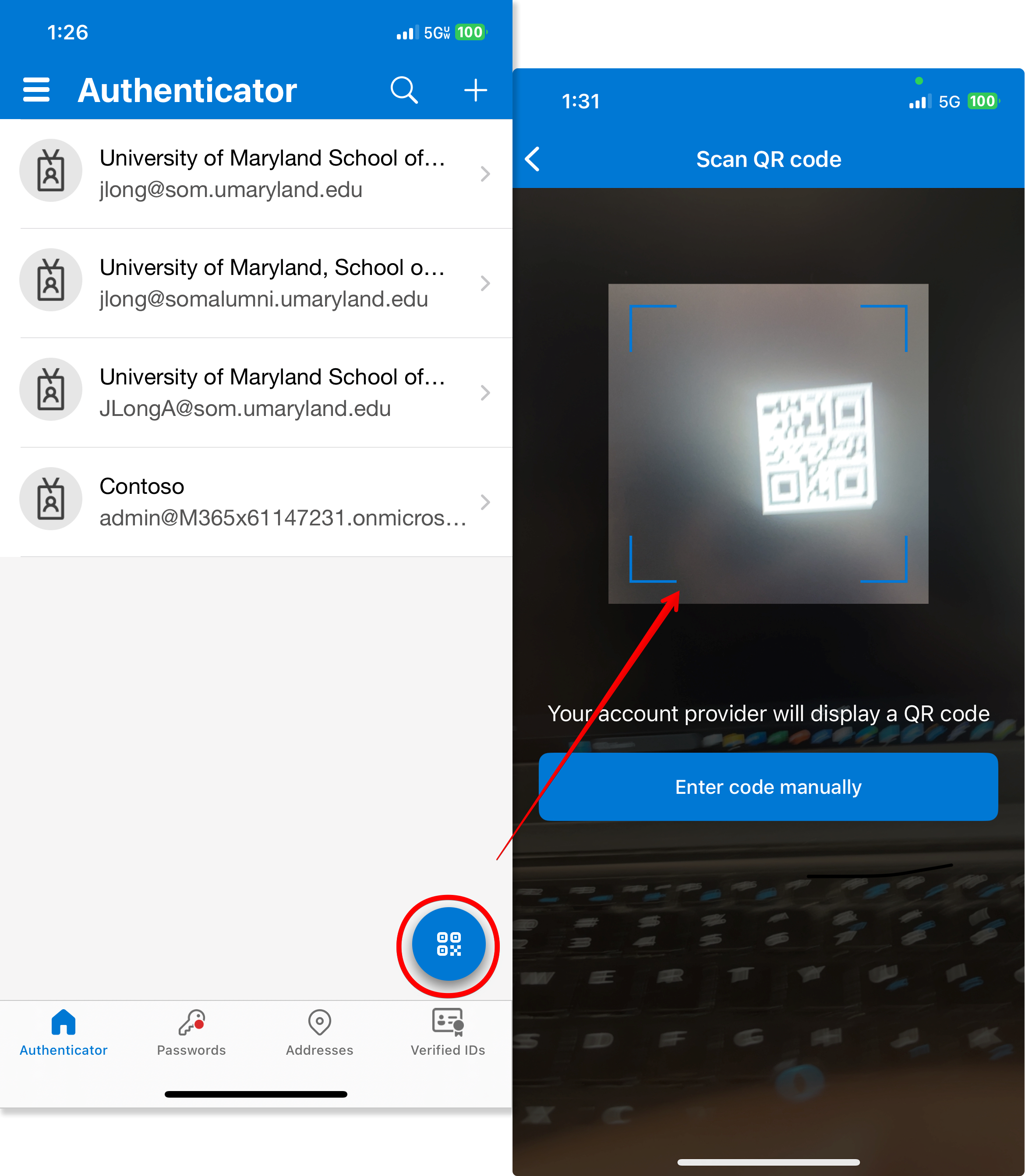 If you have problems, try this method instead. Click the + icon in the upper right hand corner. Choose Work or school account, and then Scan QR code.
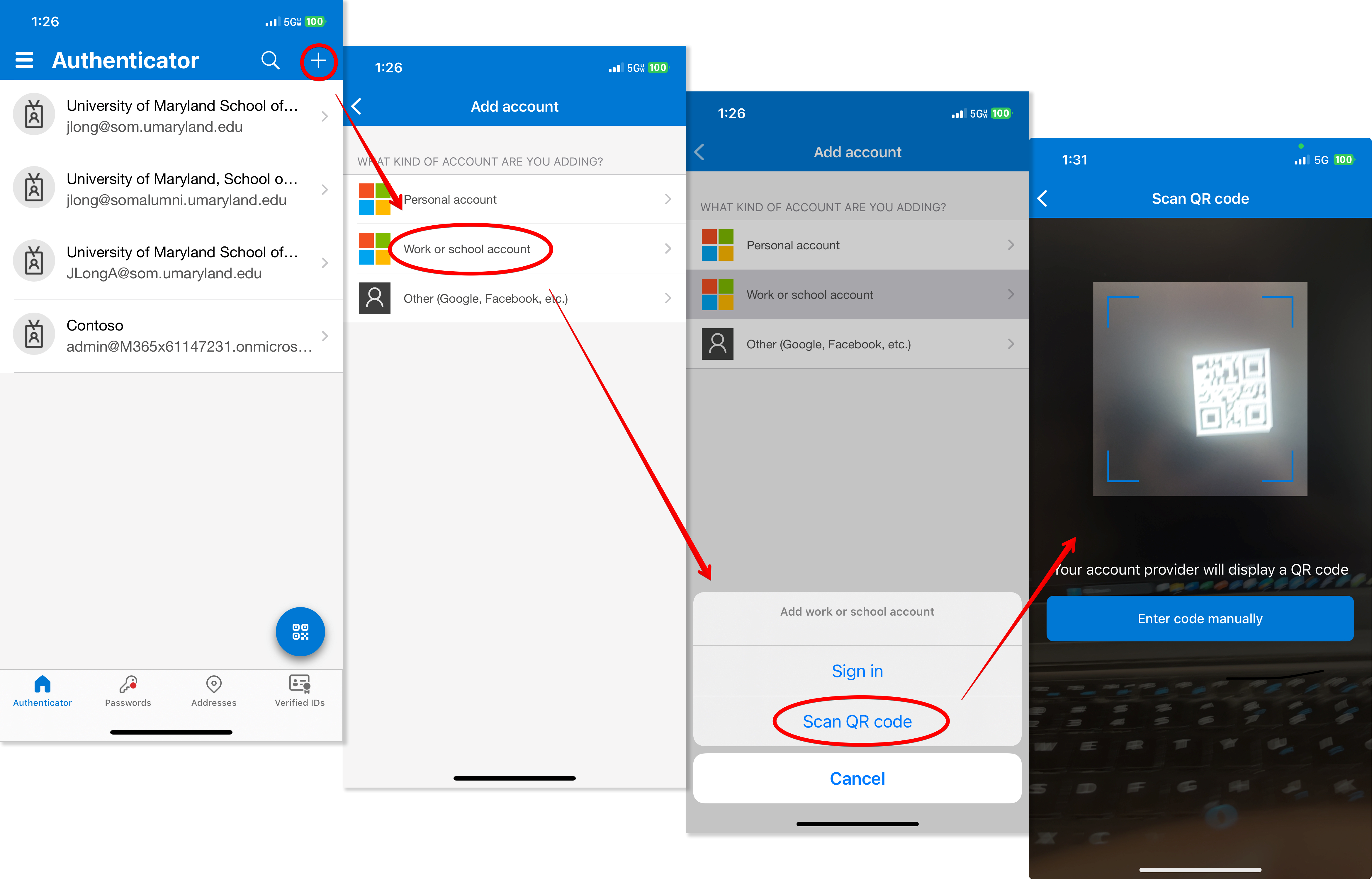
Once the account has been added to your phone, click Next on your computer.

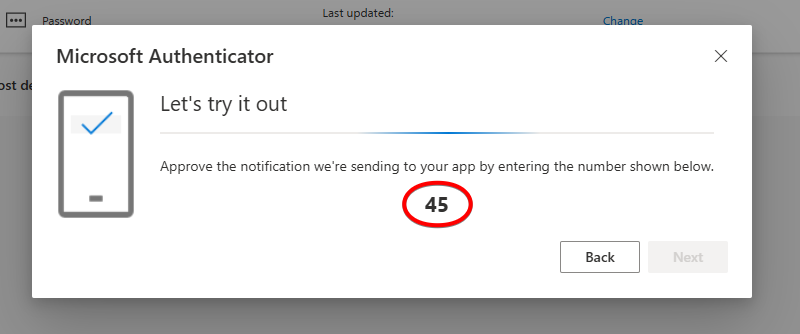
You'll be given a random two digit code.
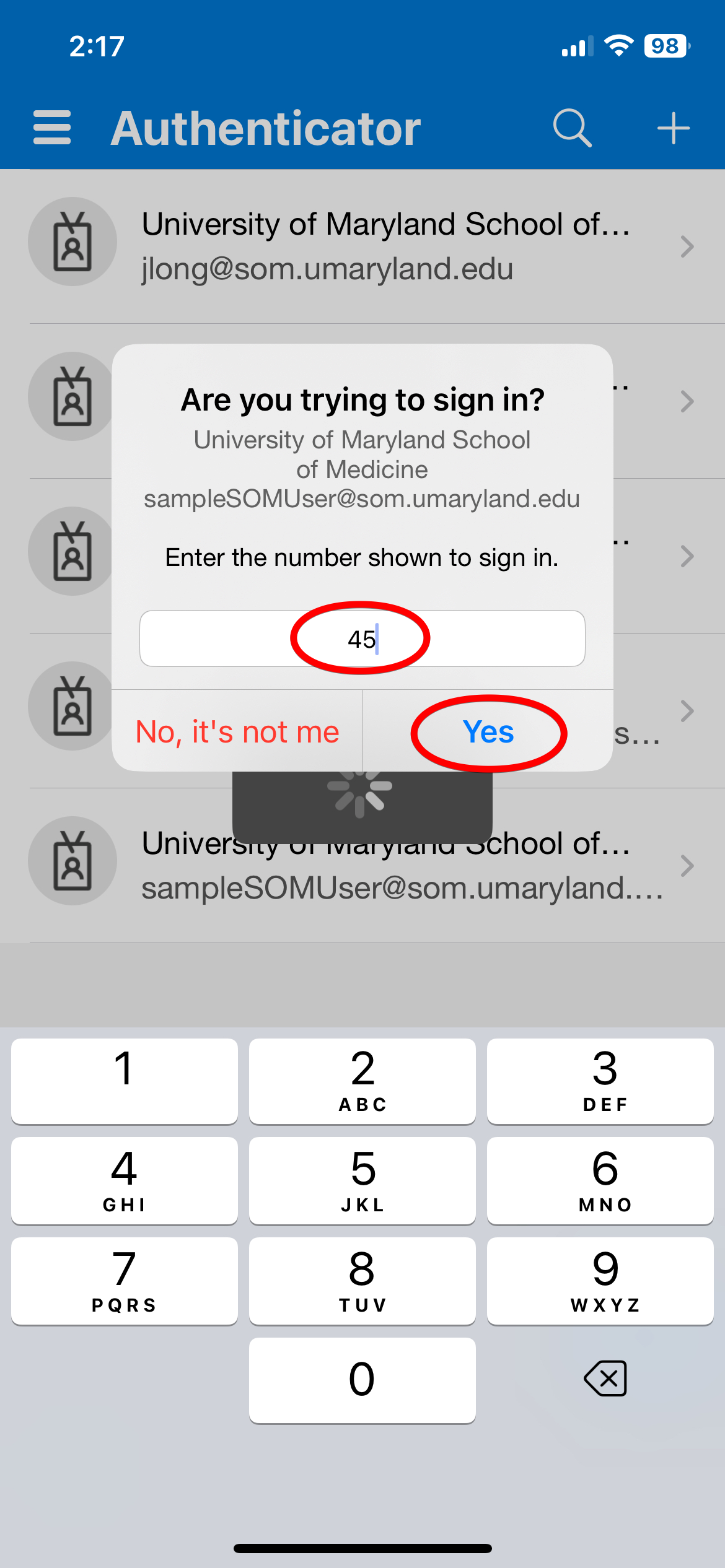
On your phone, enter this code into the app and then tap Yes.
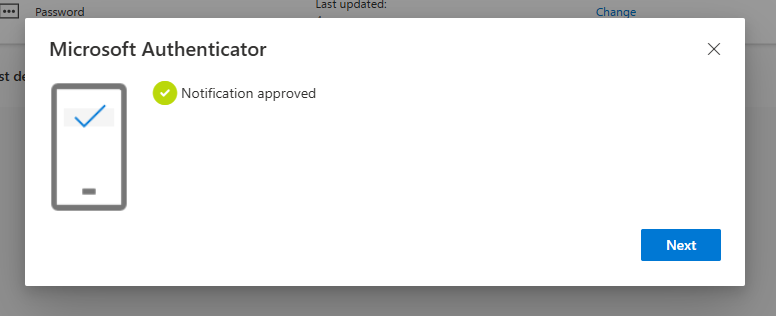
Your computer will display a Notification Approved banner. You're done!
How and When To Use Microsoft Authenticator
Authenticator is required when you:
- Are using an admin account
- An account different than your primary account, used to gain administrator access to your local computer or cloud services.
- Generate a risky sign-in
- Risky sign-ins can occur in a few ways, but the most common is through travel. If you sign-in from an unusual location, the system will need to ensure that you're not a malicious actor.
- When accessing UMM or FPI resources, especially if you are off campus.
Authenticator can also be used when:
- Using Self Service Password Reset.
- When logging in to cloud resources while off campus.
Authenticator uses a combination of a push and code, called number matching. When you log in and initiate a push, you'll see a prompt with a random two digit code.
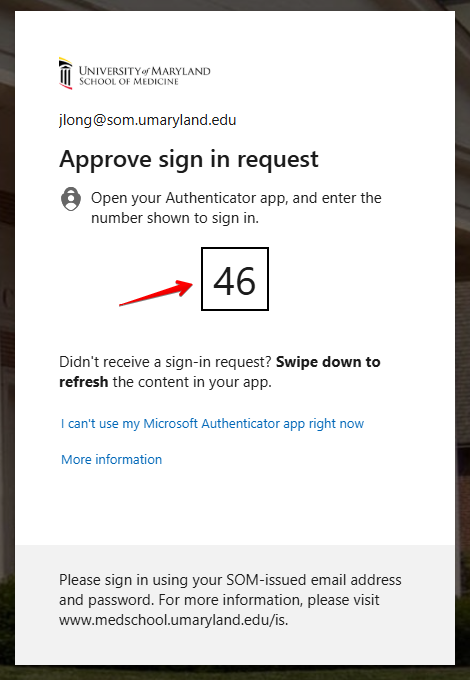
Open the Microsoft Authenticator app on your phone, enter this code, and click Yes.
Choosing Microsoft Authenticator
When using Self Service Password Reset, choose the authenticator app option.
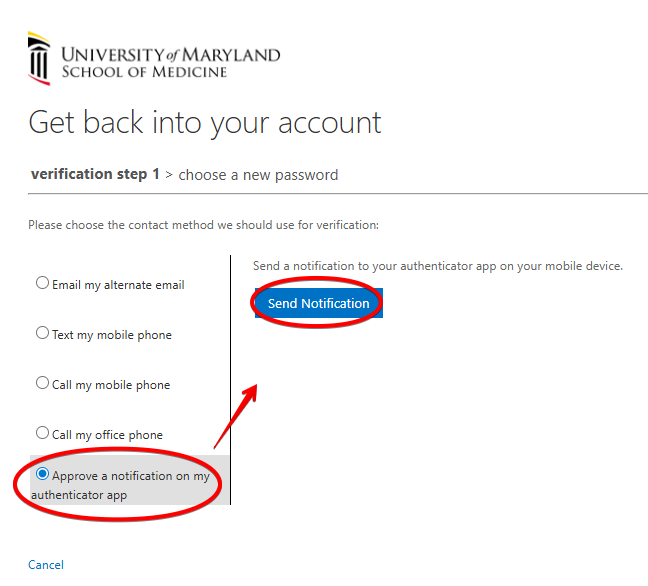
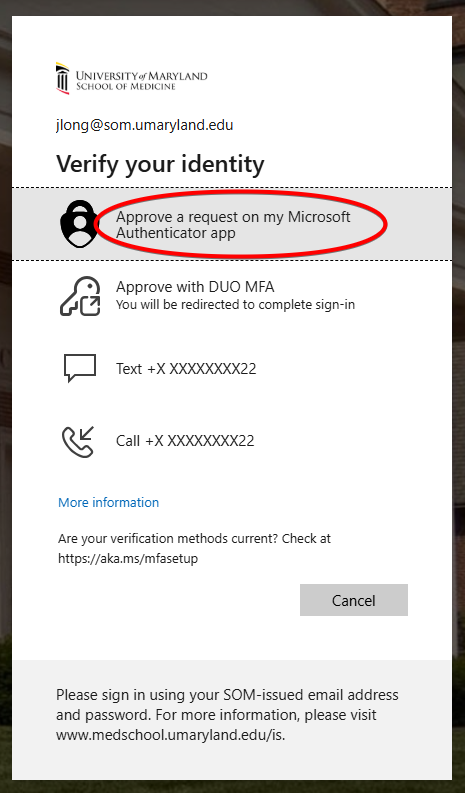
You can also use Microsoft Authenticator during regular login, if there is an issue with DUO. At login, choose Other ways to sign in.
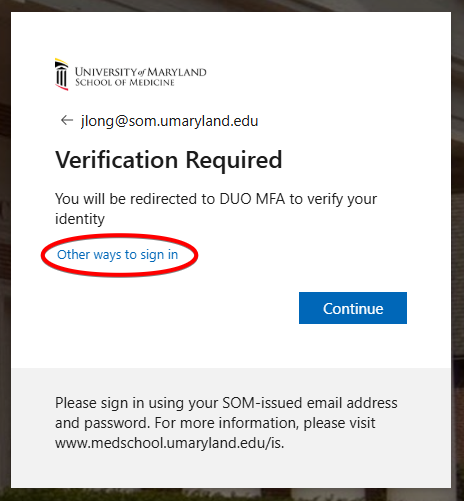
Next, choose the Microsoft Authenticator option.