
Here's a direct link to start the Zoom for Outlook Add-in installation:
https://marketplace.microsoft.com/en-us/product/WA104381712
This will have you sign in with your SOM account, and will open Outlook in a web browser.
To find the add-in from within Outlook Classic, click the Apps button on the left > Add Apps.
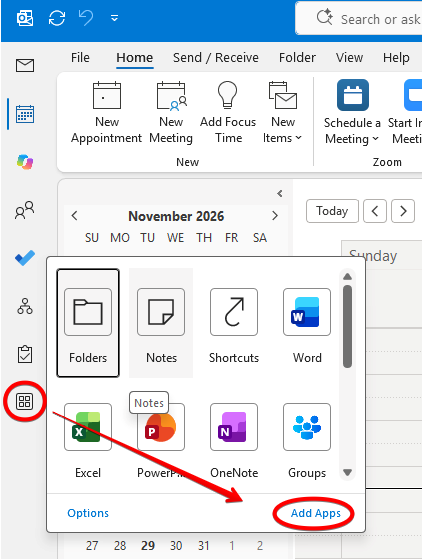
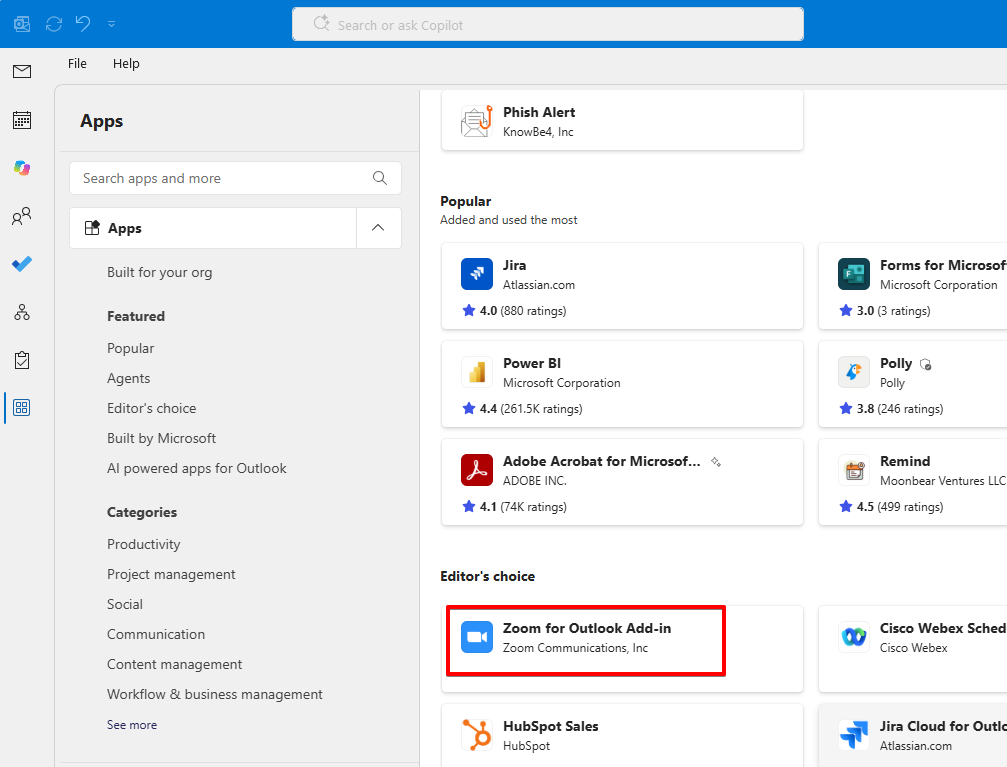
This will launch Outlook in a web browser. Scroll down just a bit and you'll see Zoom for Outlook Add-in. Click it to open.
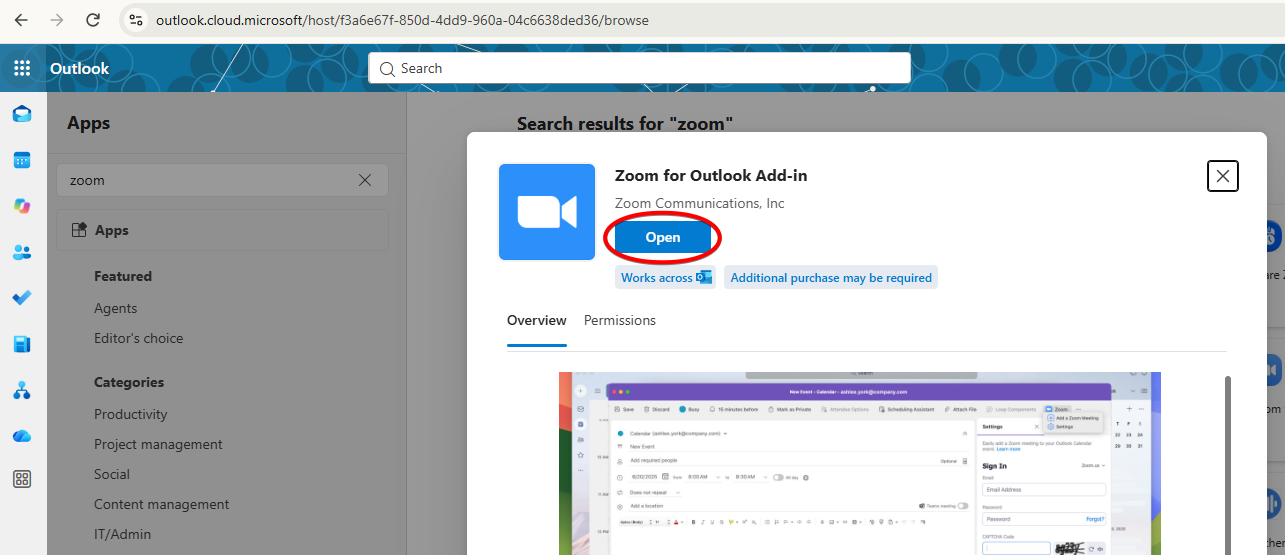
Now click the button that says Open or Install.
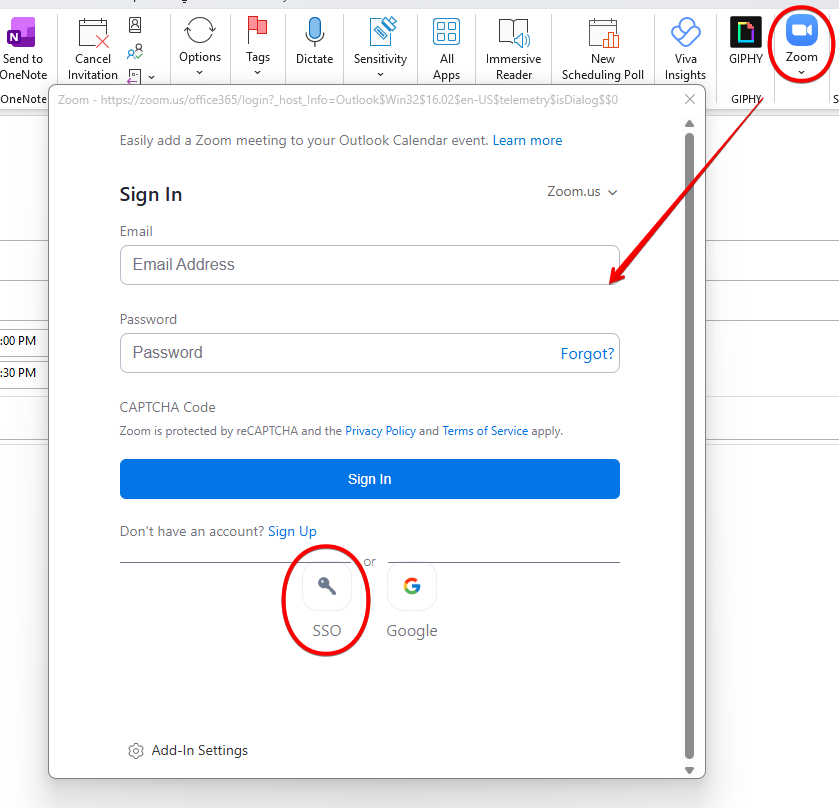
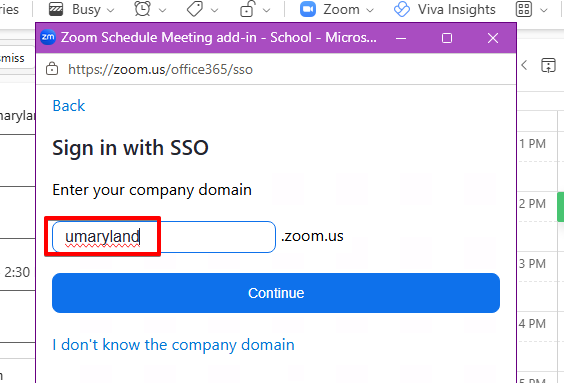
You'll see a Zoom button now once you create a new meeting/event in Outlook. The first time you use it, you'll need to log in. Be sure to choose SSO (single sign-on).
Enter umaryland as the domain.
You'll be redirected to the UMB login page, which you should be familiar with.
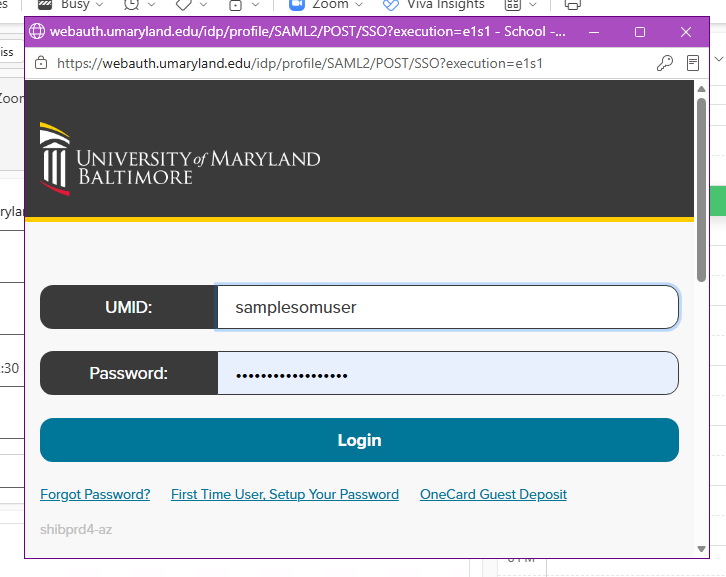
You'll likely need to accept a DUO push. Once you're logged in, Outlook should fill in Zoom meeting information.
You have the option of connecting your Outlook calendar directly to Zoom in what's called a bidirectional sync. This means if you change a meeting in Outlook, it will update it in Zoom. If you change a meeting directly in Zoom, it will update it in Outlook. Without this, changing a meeting in one place will not update the time or details in the other.
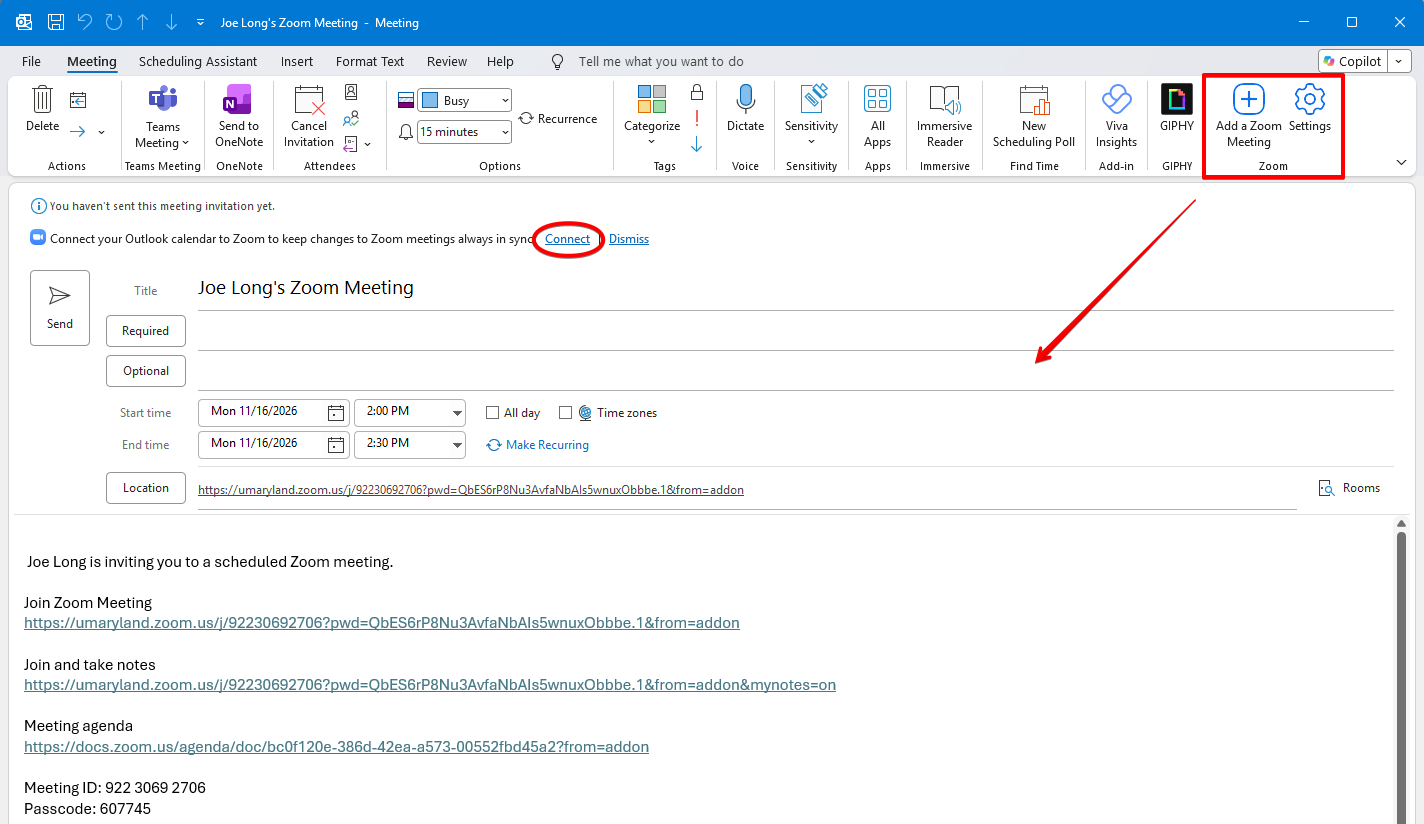
Clicking Connect will launch Zoom in a pop-up window. Office 365 should already be highlighted. Click Next.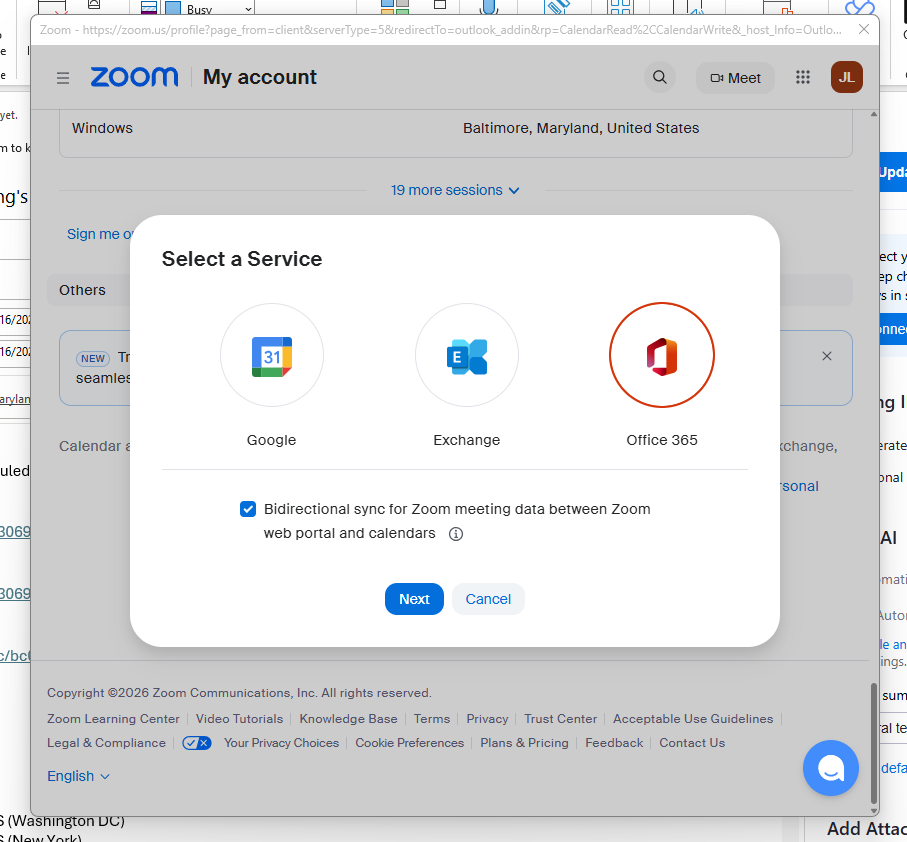
On the next screen, click Authorize.
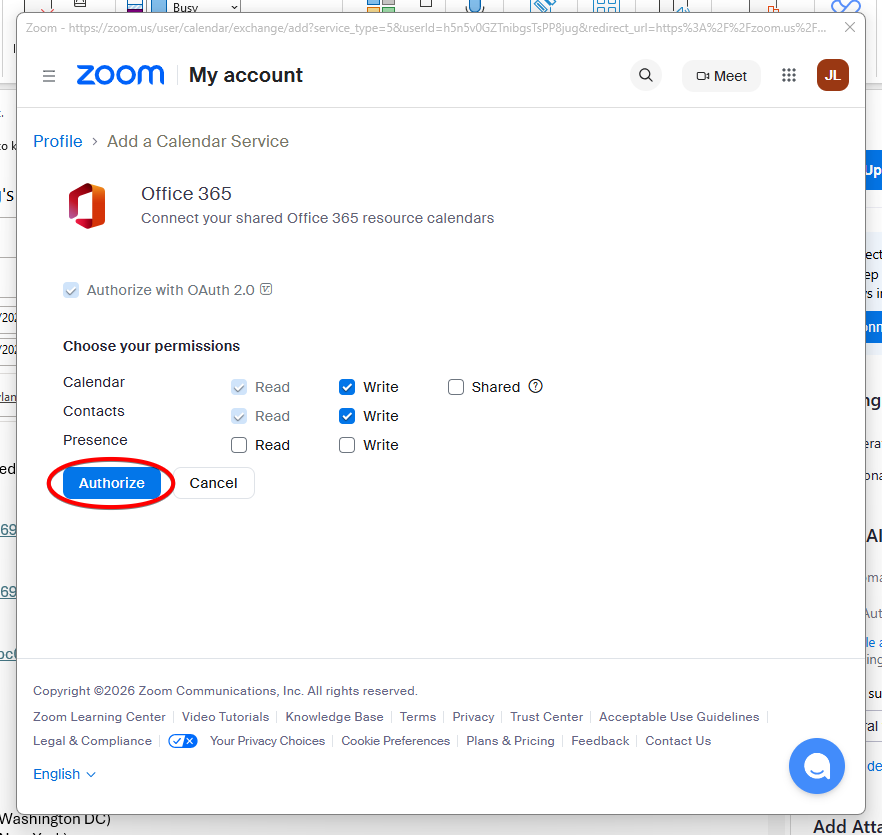
You may be prompted to login with your SOM account. Do so, and the process is complete.