
How do I access Add-ins in Microsoft M365 Applications?
In this article [jump to a section]:
About Add-ins
An add-in is a small piece of software that integrates directly into a larger program such as Word or Excel. Add-ins are developed by other companies (third parties) and each installed add-in has access to our organization's data. To maintain the security of our data, SOM cannot allow free use of add-ins. There are a few add-ins that are available to everyone. Additional add-ins can be requested.
How to Access Add-ins
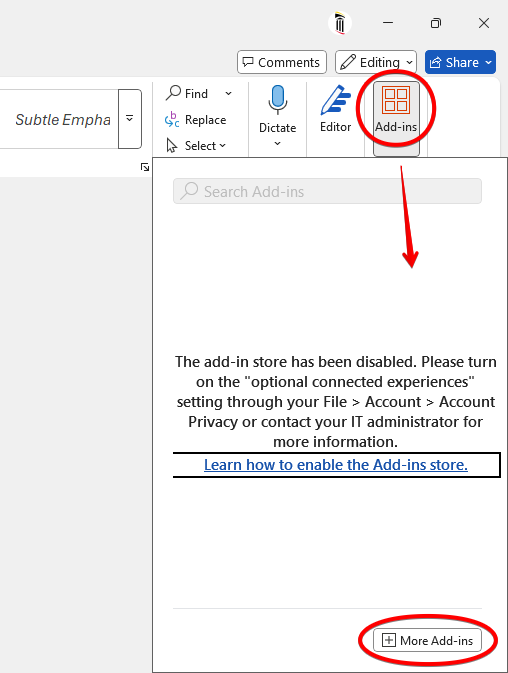
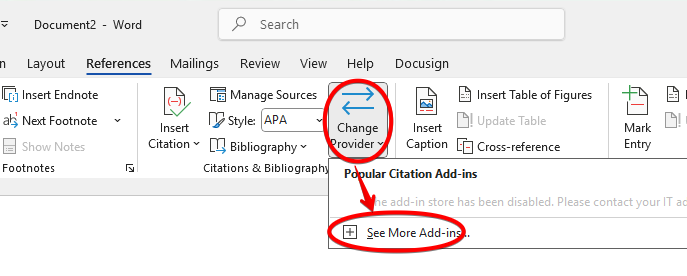
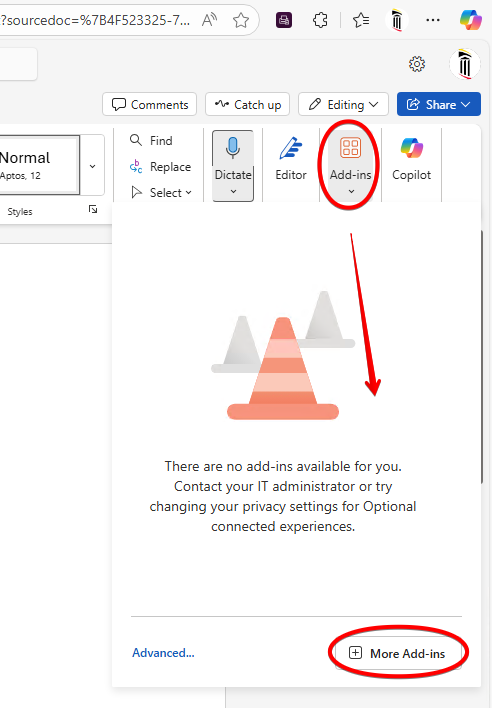
Click the Add-in button. It is generally to the right of the Home ribbon in any M365 application. You will get a warning that the add-in store is disabled. This is normal. Click More Add-ins at the bottom of this window.
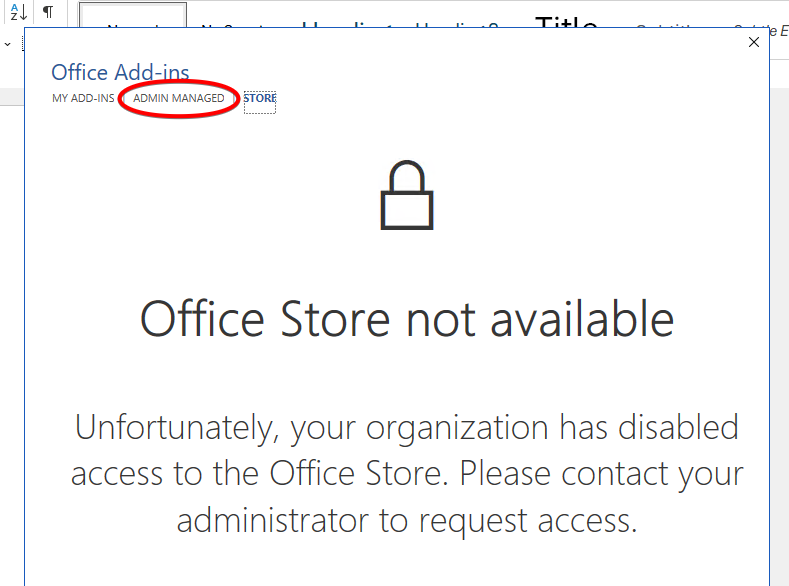
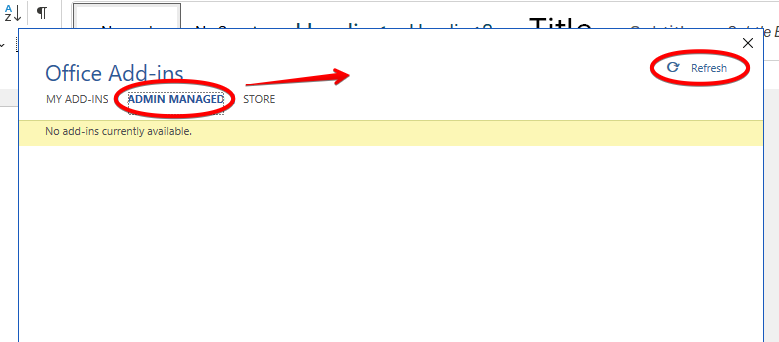
You'll see another message telling you that the Office Store is not available. Click ADMIN MANAGED at the top.
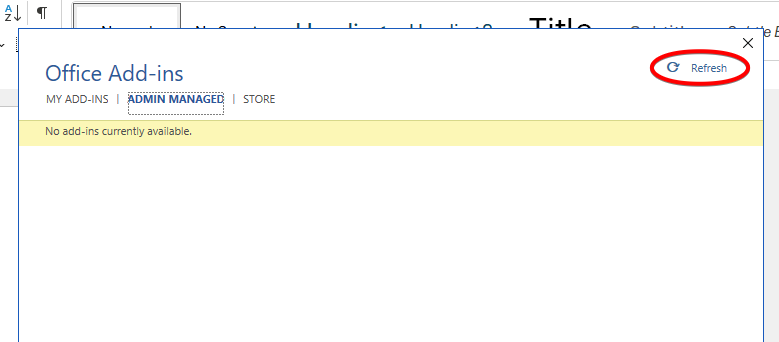
You may see add-ins now. If you do not, click Refresh. This sometimes needs to be done when M365 is updated.
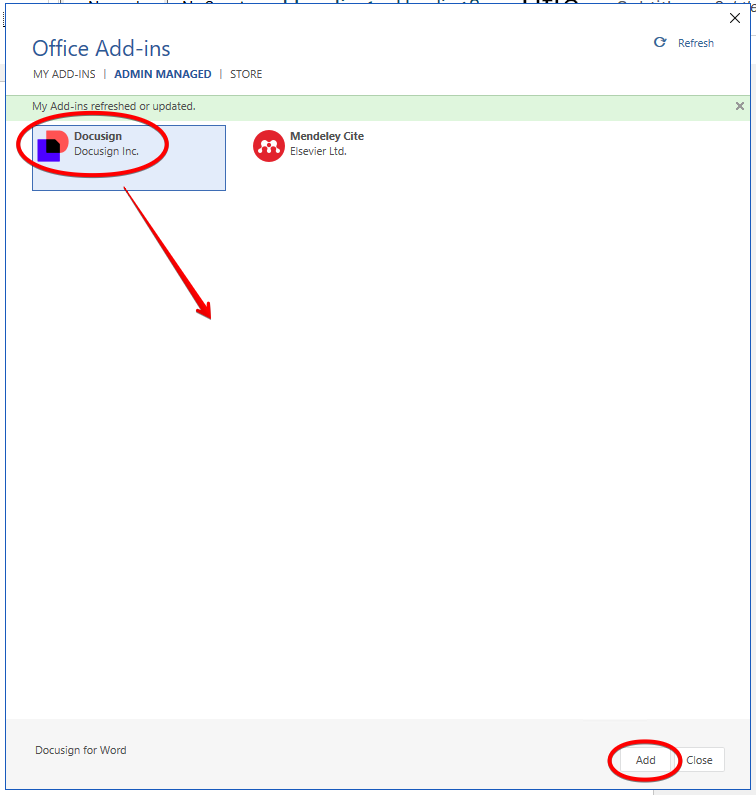
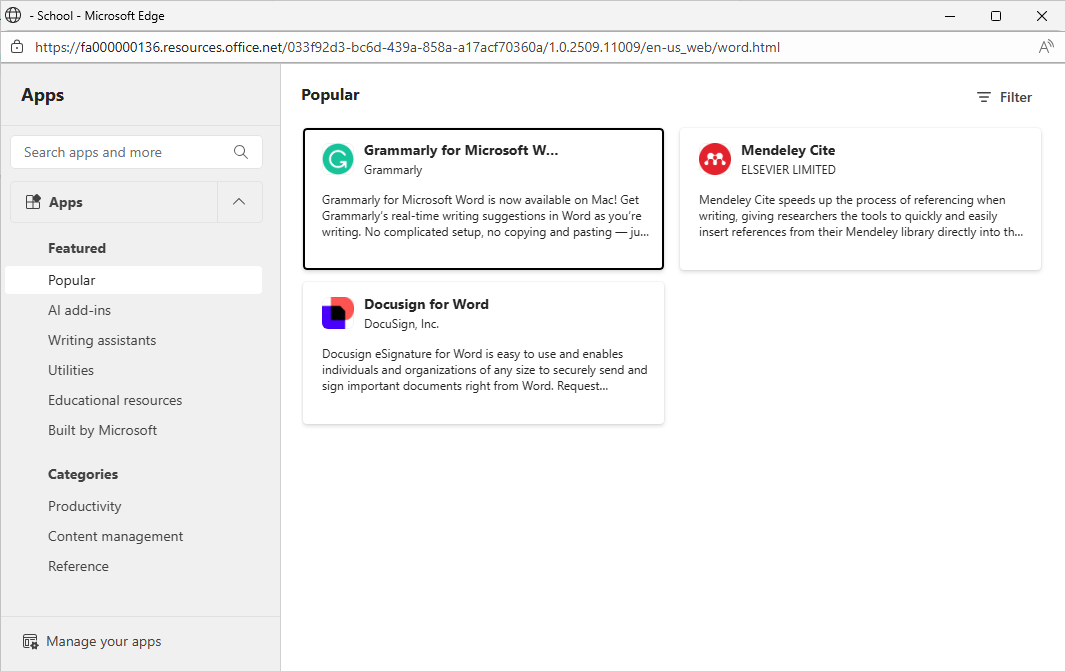
You should now see the add-ins that are available. Select one and click Add.
Every add-in works differently, but generally you should see the add-in appear in your menu.
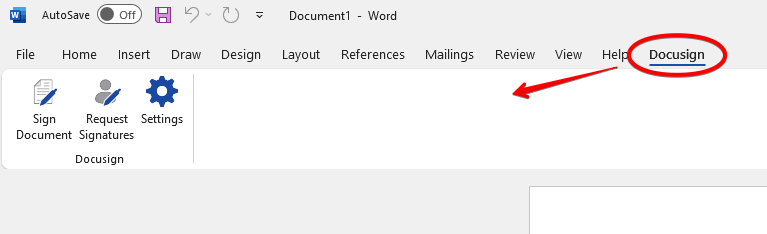
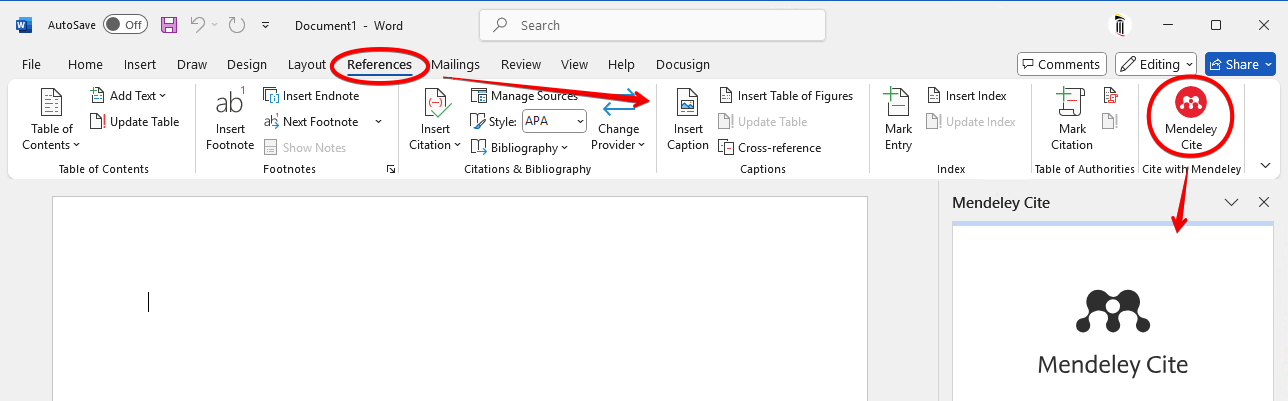
Mendeley Cite
Mendeley Cite is a very popular citation add-in. It is available to all SOM users. Once installed, you'll find it under References.
If Mendeley Cite disappears, go to References > Change Provider > See More Add-ins
Click on ADMIN MANAGED. If you do not see Mendeley Cite here, click Refresh.
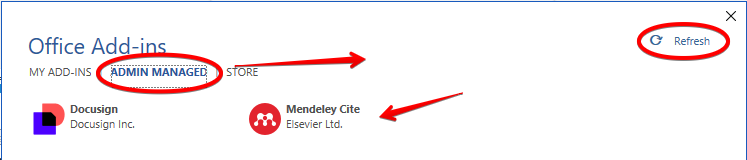
Select it and click Add. This should restore Mendeley Cite. If you still have issues, see the next section for troubleshooting.
Troubleshooting Add-ins
- When looking for add-ins, make sure you've clicked the ADMIN MANAGED tab, and if it is empty, click Refresh. The Store tab will always say that it is disabled. This is normal.
- Make sure you're in the right app. For example, a polling app for Powerpoint will only display in Powerpoint, not in Word or Outlook.
- Try the cloud version of the app. If the add-in is available to you, it should appear here. You can use the add-in here until the desktop version of your app is resolved.
You can access all of your cloud apps here: https://m365.cloud.microsoft/apps/
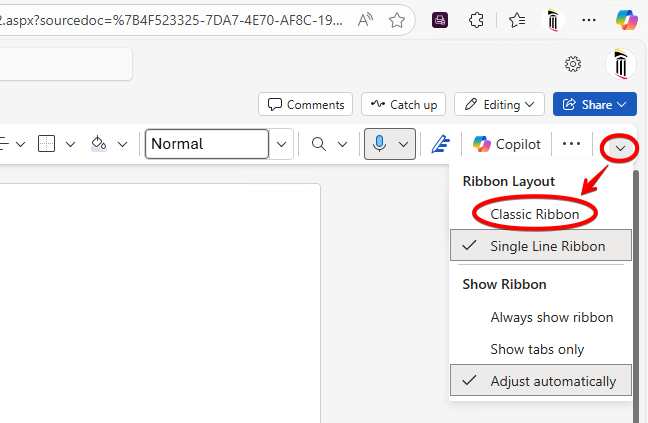
To access add-ins, you may need to switch to the Classic Ribbon.
Click Add-ins > More Add-ins.
You should see all add-ins that are available to you here.
If you are still having problems, contact the helpdesk!
Requesting an Add-in
If there's an add-in that you'd like, email the helpdesk with the name of the add-in. We'll have to investigate it and make sure it meets our security standards, and then we'll respond. If an add-in is approved, it can most likely be deployed to you automatically.