Scheduling Poll
When scheduling a meeting with people whose calendar availability you cannot see, insert a Scheduling Poll to find the best time.
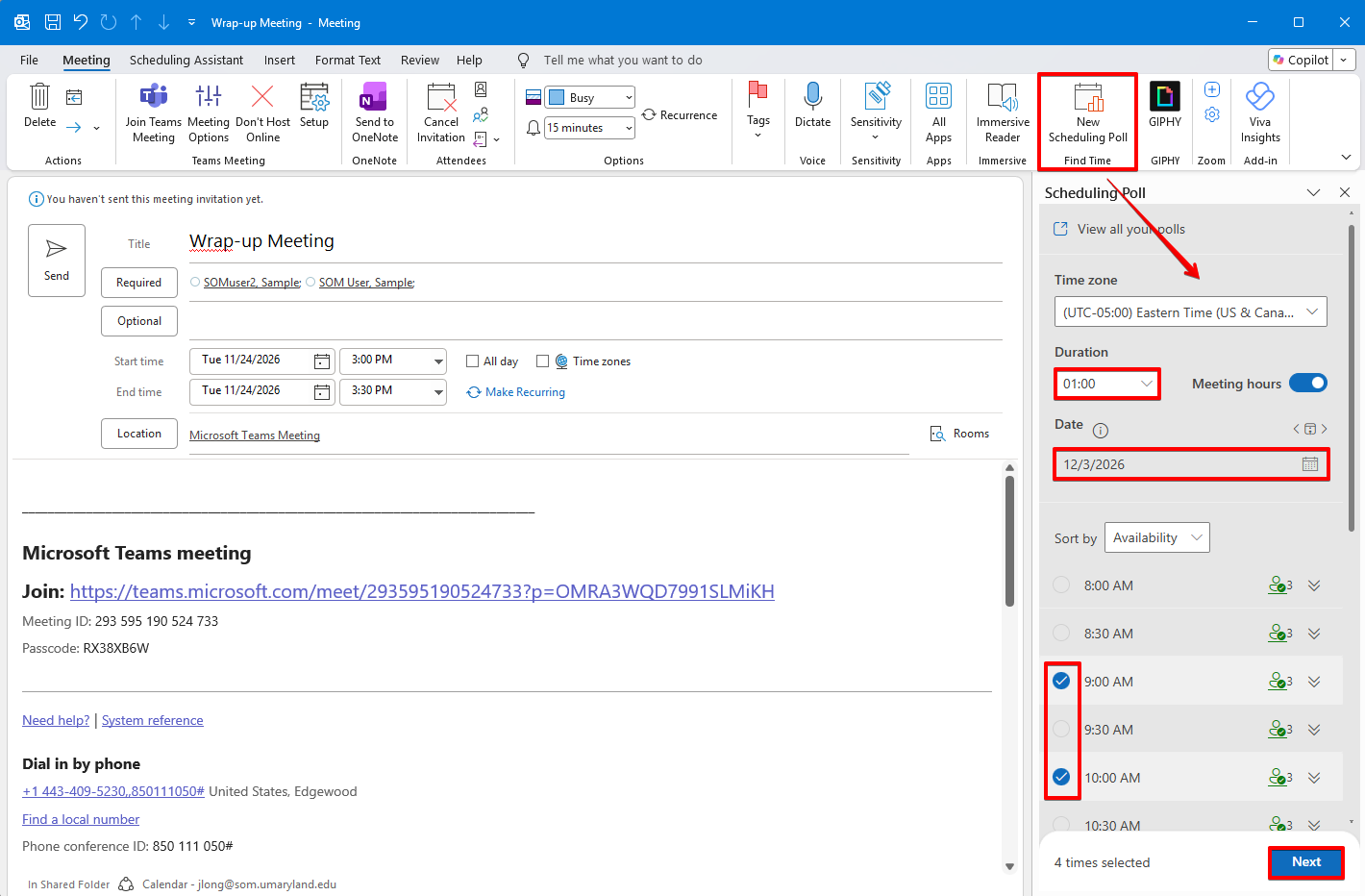
In Outlook Classic, choose your attendees, enable Teams if it is an online meeting, and then click New Scheduling Poll. A pane will appear on the right. Select a few different times. You can select times from different days. Three to five times is recommended. When done, click Next.
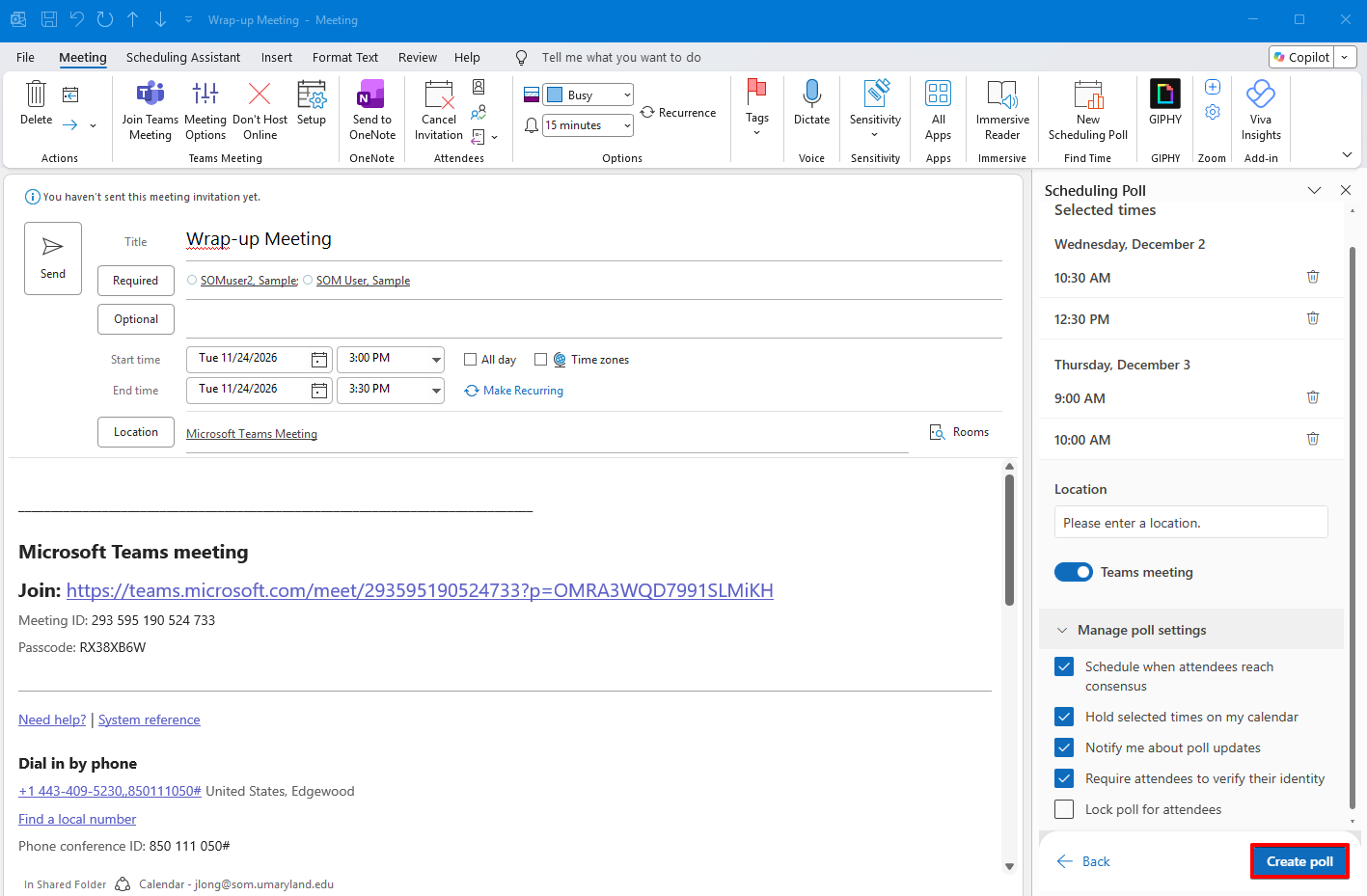
Your times will be listed. Click Create Poll.
You'll also see Manage poll settings here.
- Schedule when attendees reach consensus: When all required attendees vote for the same time block, the meeting will automatically be scheduled for you and everyone else. Optional attendees do not count. If multiple time blocks are approved, the earliest one is selected.
- Hold selected times on my calendar: All time blocks will be held as busy. They will be released when the meeting is scheduled.
- Notify me about poll updates: You are sent a notification after each vote.
- Require attendees to verify their identity: This has little to no effect on SOM users. For external users, they will either need to sign in again if they have a Microsoft 365 account, or for users without a M365 account, they will be sent a code via email to verify.
- Lock poll for attendees: Attendees can propose new times and add other attendees unless you enable this option.
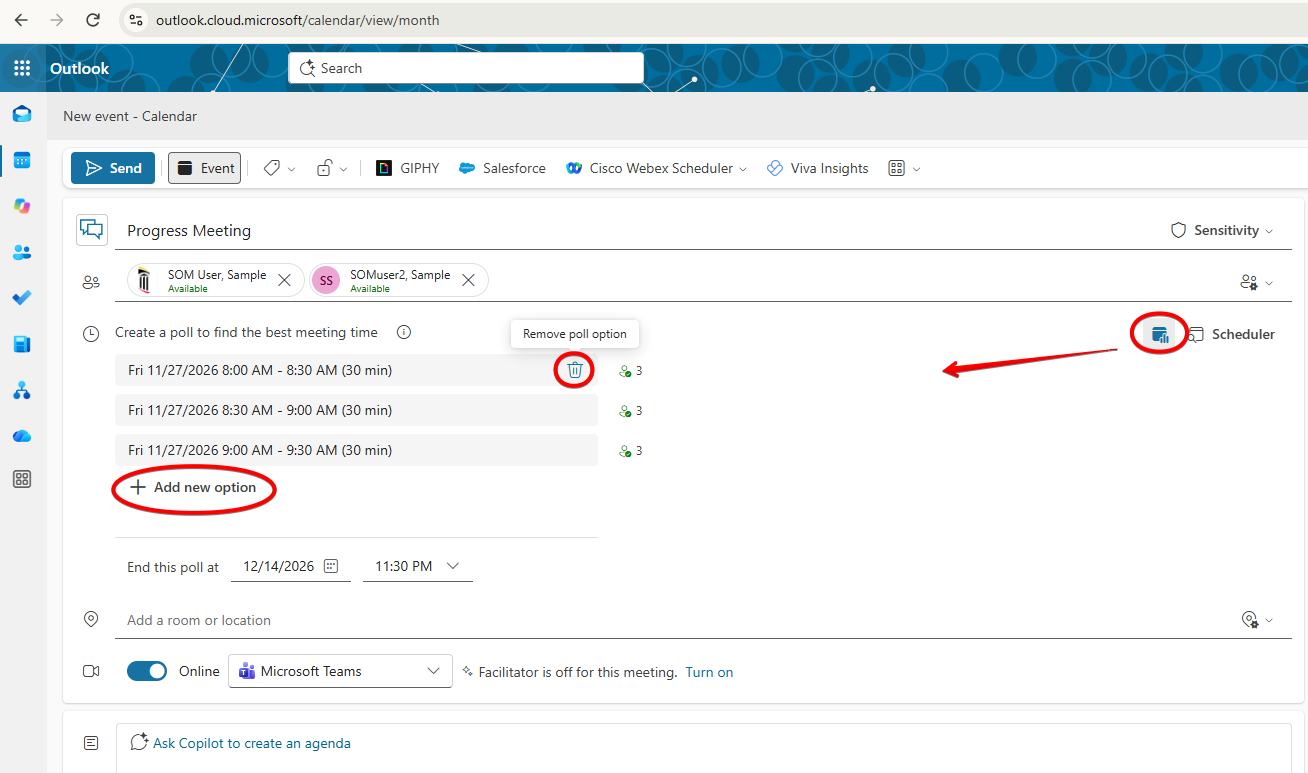
Scheduling Poll exists in Outlook in a web browser, but looks slightly different.
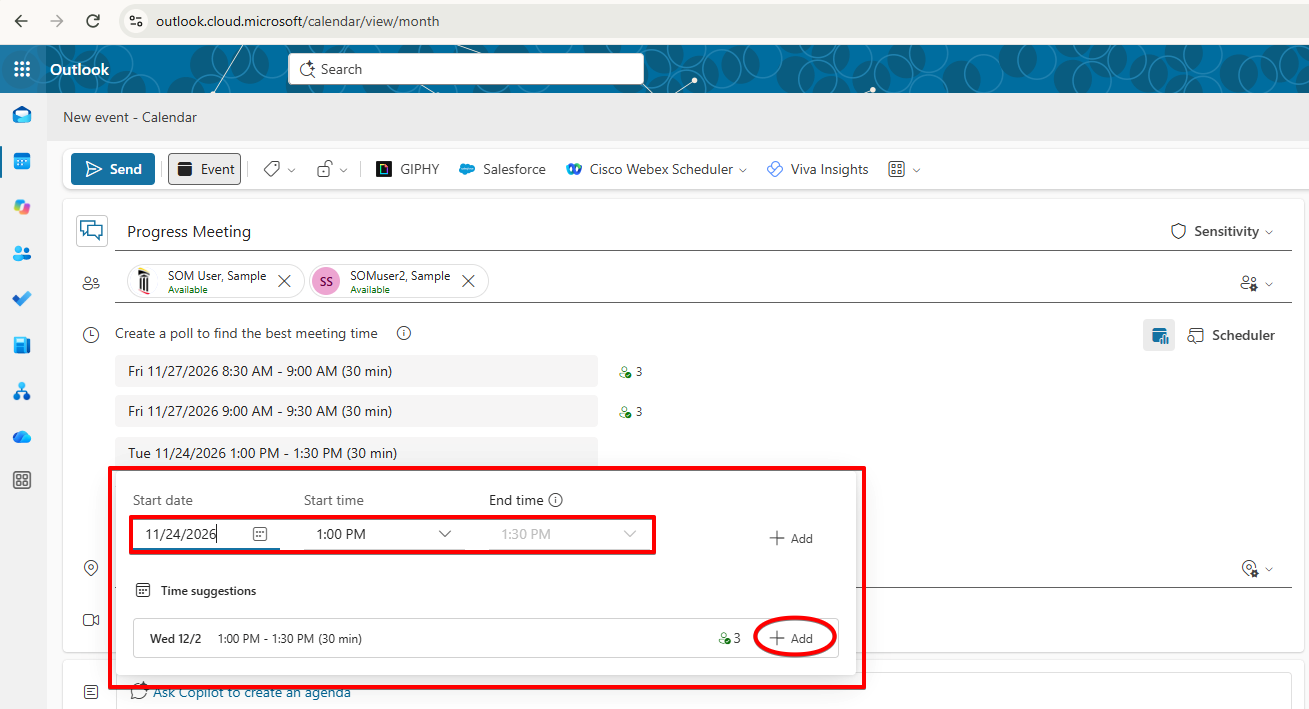
Create a new event, add your attendees, Teams option, and click the poll icon next to Scheduler. This will open up options just below it. Three dates will be automatically chosen for you. Hover over one and click the trash can icon to remove it. Click Add new option to add a new date.
This opens up a small pop-up pane which lets you select a date. Add as many as you'd like. When you're done, click Send as you'd normally do.
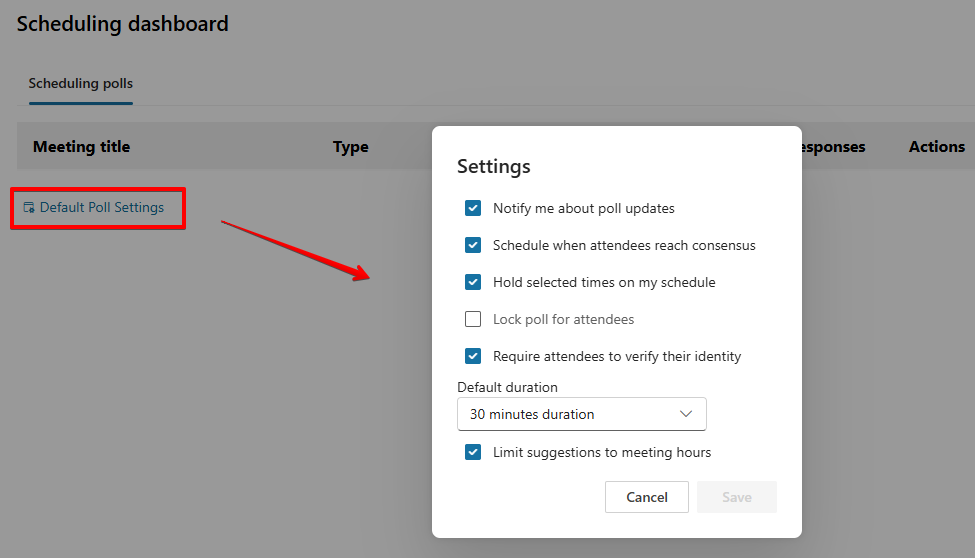
You do not have the same options as you do in Outlook Classic. Assume they are:
- Schedule when attendees reach consensus: Enabled
- Hold selected times on my calendar: Enabled
- Notify me about poll updates: Enabled
- Require attendees to verify their identity: Enabled
- Lock poll for attendees: Disabled
You can manage your default Scheduling Poll settings in Outlook in a web browser here: https://outlook.office365.com/findtime/dashboard
Scheduling Assistant
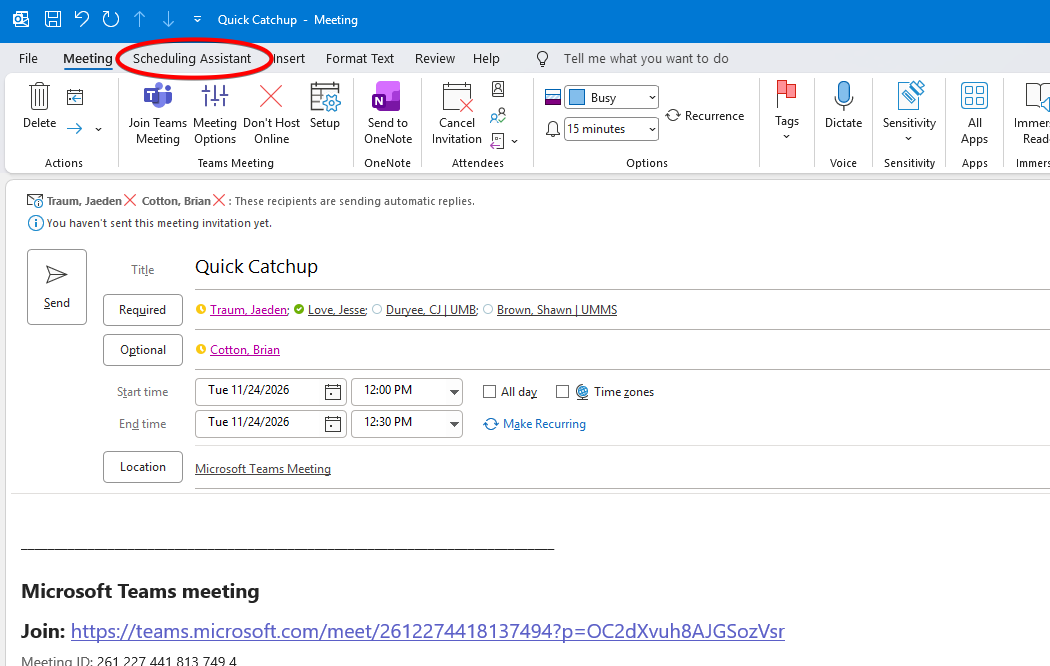
In Outlook Classic, set up a meeting. Here I have attendees from SOM, UMB and UMM. Now click Scheduling Assistant.
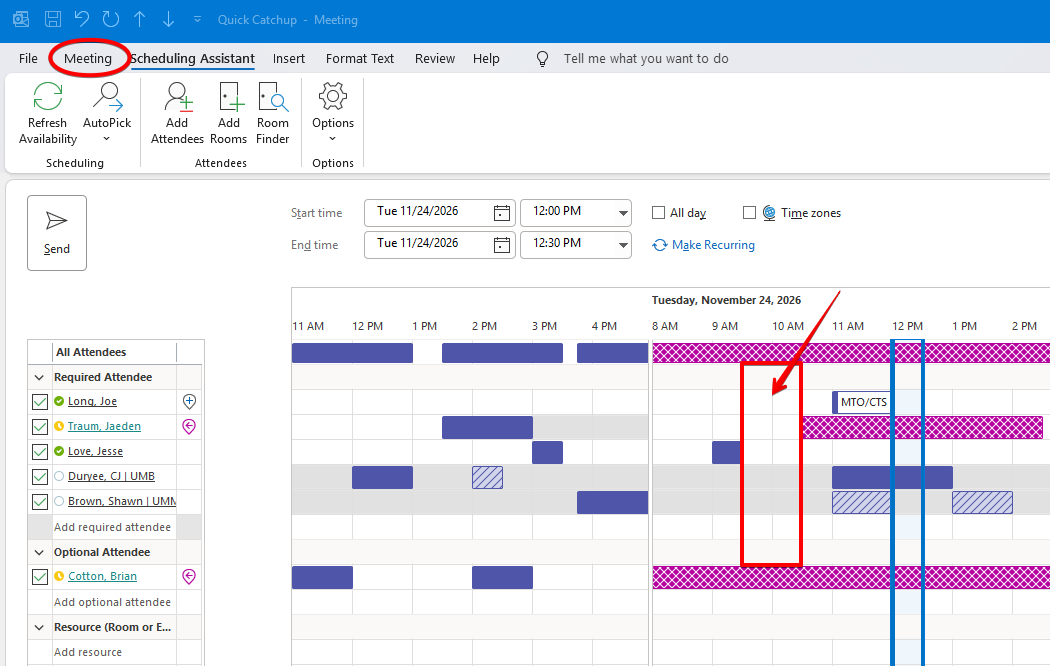
You'll see a graphical layout of everyone's availability. The vertical blue box is the current time of the meeting. Looks like my optional attendee is booked up, but I see a time slot where everyone else is free. You can click directly on this time slot to choose it. Once you've selected your time slot, click Meeting again and your time will be updated.
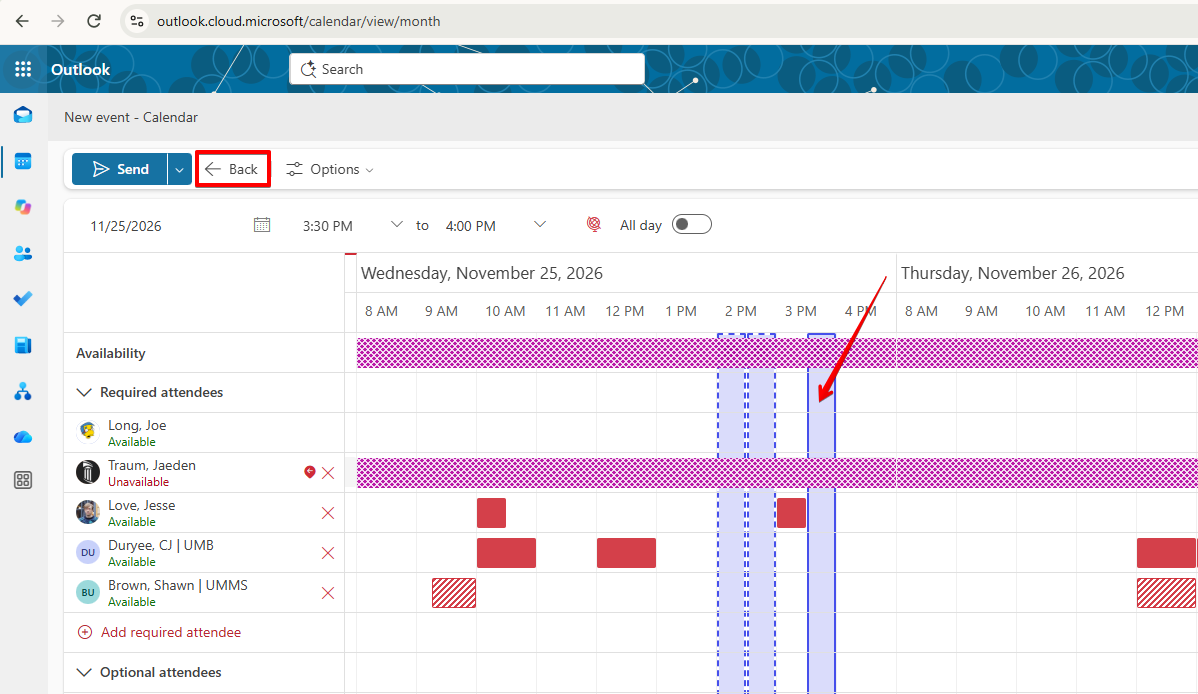
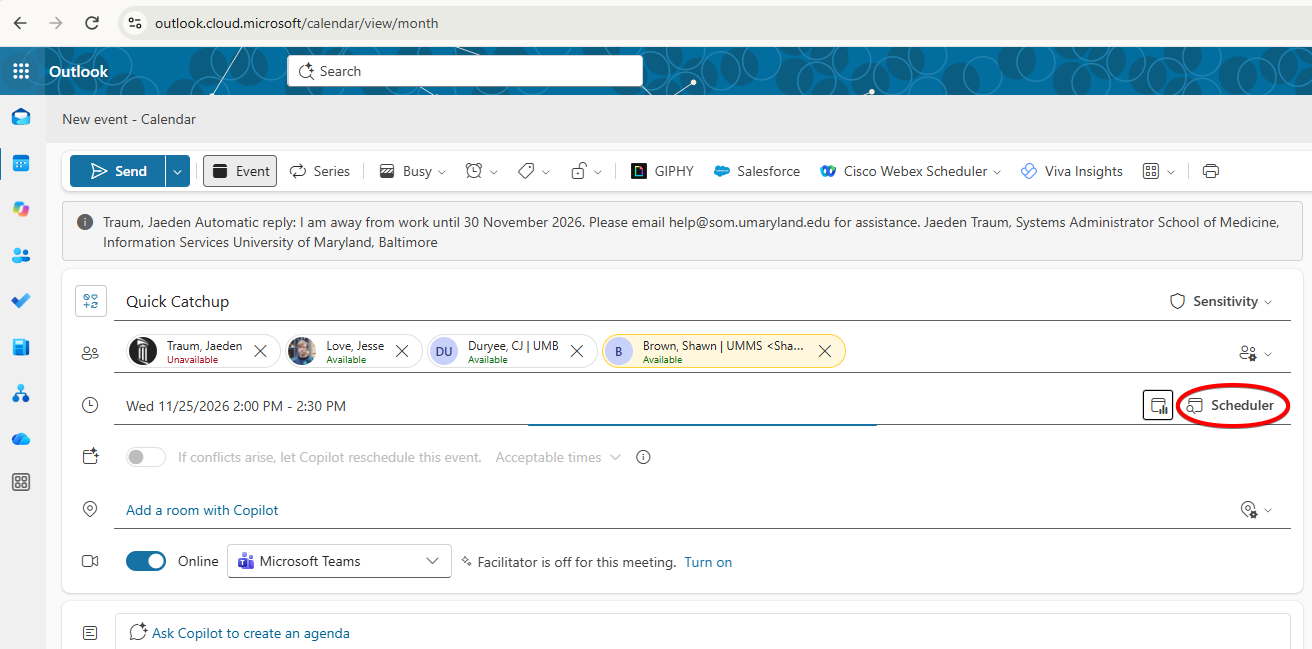
In Outlook in a browser, you'll click the hourglass icon labelled Scheduler.
Outlook in a web browser will suggest time slots by highlighting them with a dotted line. Click on one of these, or a new time slot. Either Send the message or click Back to return to the normal view.