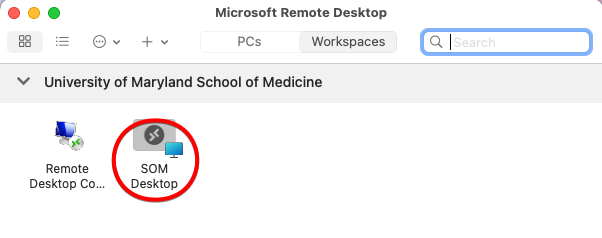
 The SOM Office of Information Services provides remote access to resources using Azure Virtual Desktop (AVD).
Connecting to AVD is similar to sitting down at a SOM workstation right on campus - from anywhere! You'll have access to all of the Office 365 Services (Outlook, Teams, OneDrive, etc), SOMFiles data (mapped drives such as V: and W:), and access to other UMMS/SOM/FPI resources, such as EPIC and the UMMS Store.
AVD is available for both Windows and Mac users. Because the process is cloud-based, the experience is identical for all users.
! AVD access is offered to all SOM IS-supported faculty, staff and students. We also offer Remote Desktop (RDP), which allows you to connect directly to your work computer from home. You must have a valid reason to connect to your specific computer as opposed to the AVD. To seek approval for RDP, please email the SOM IS HelpDesk at help@som.umaryland.edu. Several clinical departments also manage their own AVD environments that are specifically tailored to their departments' needs. If you belong to a department with its own IT support group [see list here], ask about availability.
In this article [jump to a section]:
How to connect to Azure Virtual Desktop
This is valid for both Windows and MacOS.
The direct link for Windows App is:
https://windows.cloud.microsoft
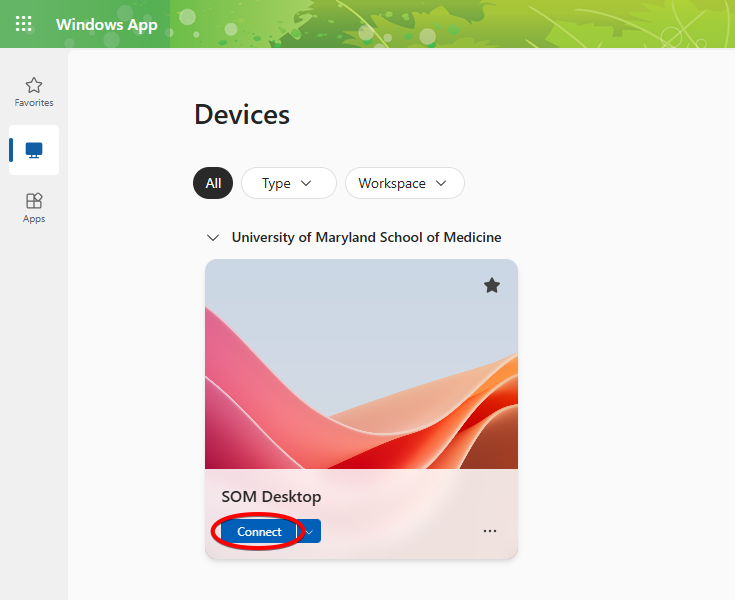
You should see the SOM Desktop, or any other Azure Virtual Desktops that you have access to listed here. Click Connect.
The first time you connect, you'll see a list of options. These will allow your virtual desktop to access resources on your local computer. When Printer is checked, for example, you’ll be able to print a document within your virtual desktop to a printer that is connected to your local computer. Clipboard refers to copying/pasting text or images. File Transfer allows you to copy files from your local computer to your virtual desktop. You can check Don’t show again to remember these settings. Connect when you're ready.
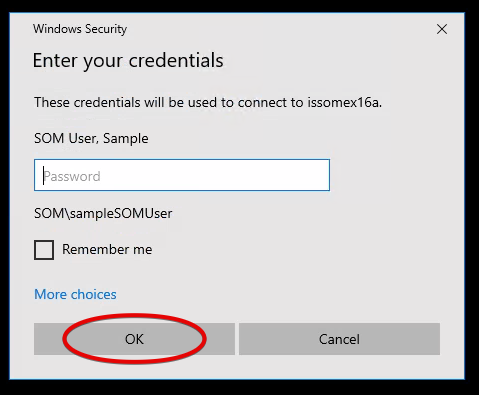
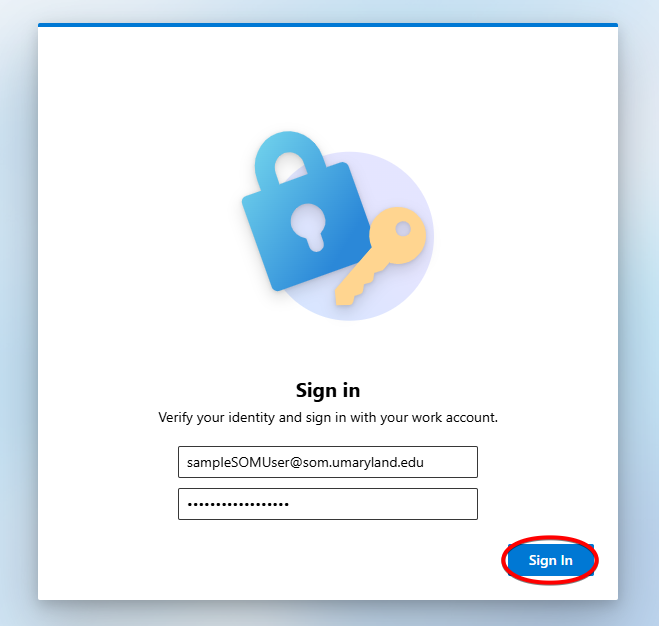
Enter your SOM credentials and click Sign In.
Here’s your virtual desktop. This is just like sitting down in front of a SOM workstation on campus. It will have Office 365, including Outlook and OneDrive, your usual mapped drives to SOMFiles, and other commonly used programs such as Epic and the UMMS Store. The entire thing operates inside a web browser window, however it opens in full screen mode so it won't look like it.
While working in a virtual desktop, you should save your files to either a network /mapped drive (H:, V:, etc) or to your OneDrive.
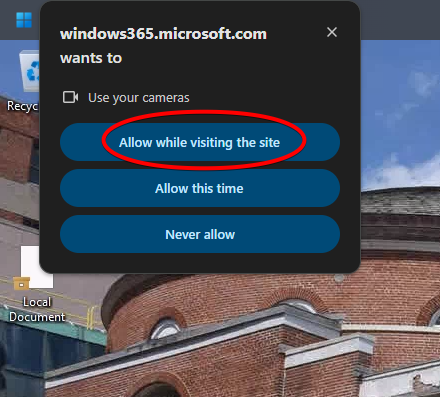
The first time you connect, you'll be prompted to allow access to your local computer's camera and microphone. This is important if you want to use Teams for meetings. Click Allow while visiting the site.
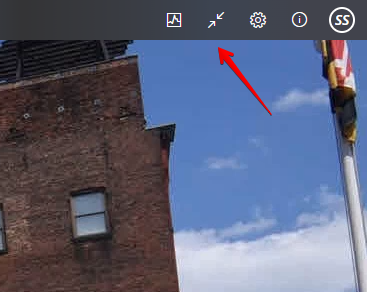
To exit full screen mode, click the two arrows in the upper right hand corner. You'll be able to access both the AVD and your local computer.
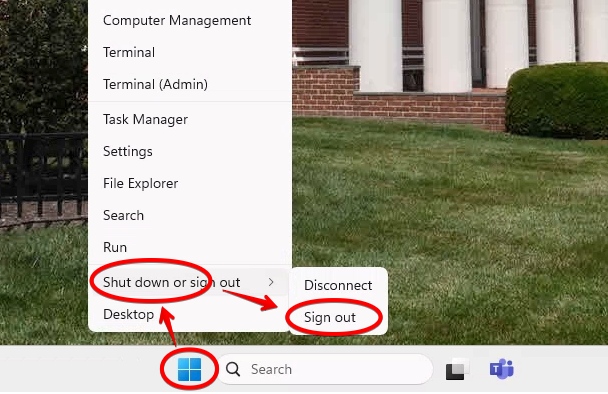
When you're done, sign out like you would a regular computer.
How to connect to Remote Desktop
This is valid for both Windows and MacOS.
The direct link for Remote Desktop is:
https://windows365.microsoft.com/ent#/apps
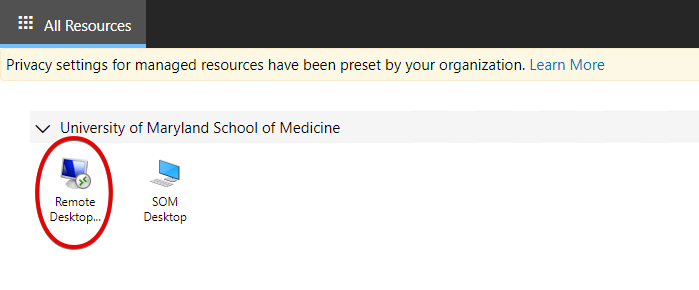
You should see an icon for a Remote Desktop. Click on this.
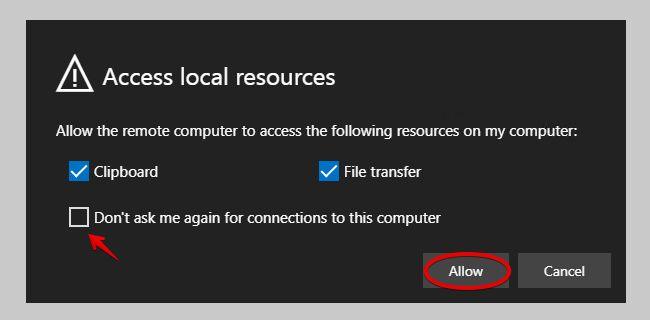
These options will allow your virtual desktop to access resources on your local computer. Clipboard refers to copying/pasting text or images. File Transfer allows you to copy files from your local computer to your virtual desktop. You can check Don’t ask me again to remember these settings.
Enter your SOM credentials and click Sign In.
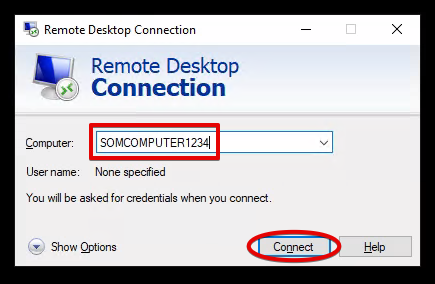
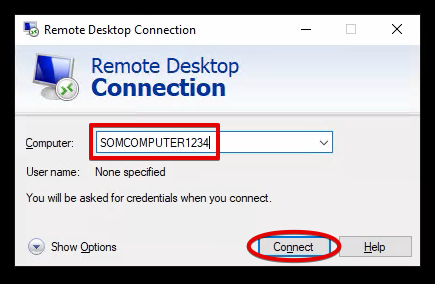
Next, the Remote Desktop Connection window will open. You'll type the name of your computer here. This will be given to you by the SOM IS Helpdesk during the approval process. Click Connect.
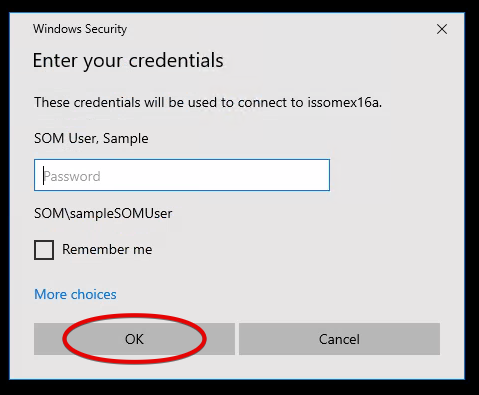
You'll be asked to authenticate once again.
Finally, you should be connected to your work computer. It should look and feel exactly as if you were in on campus, except the entire thing is displayed inside a web browser window. To close it, simply click the X at the top, or go to the Start button > Power > Disconnect.
In the upper right hand corner, you have three icons. The up arrow will allow you to copy a file from your local computer to the virtual desktop. The double arrow will display the virtual desktop in full screen mode.
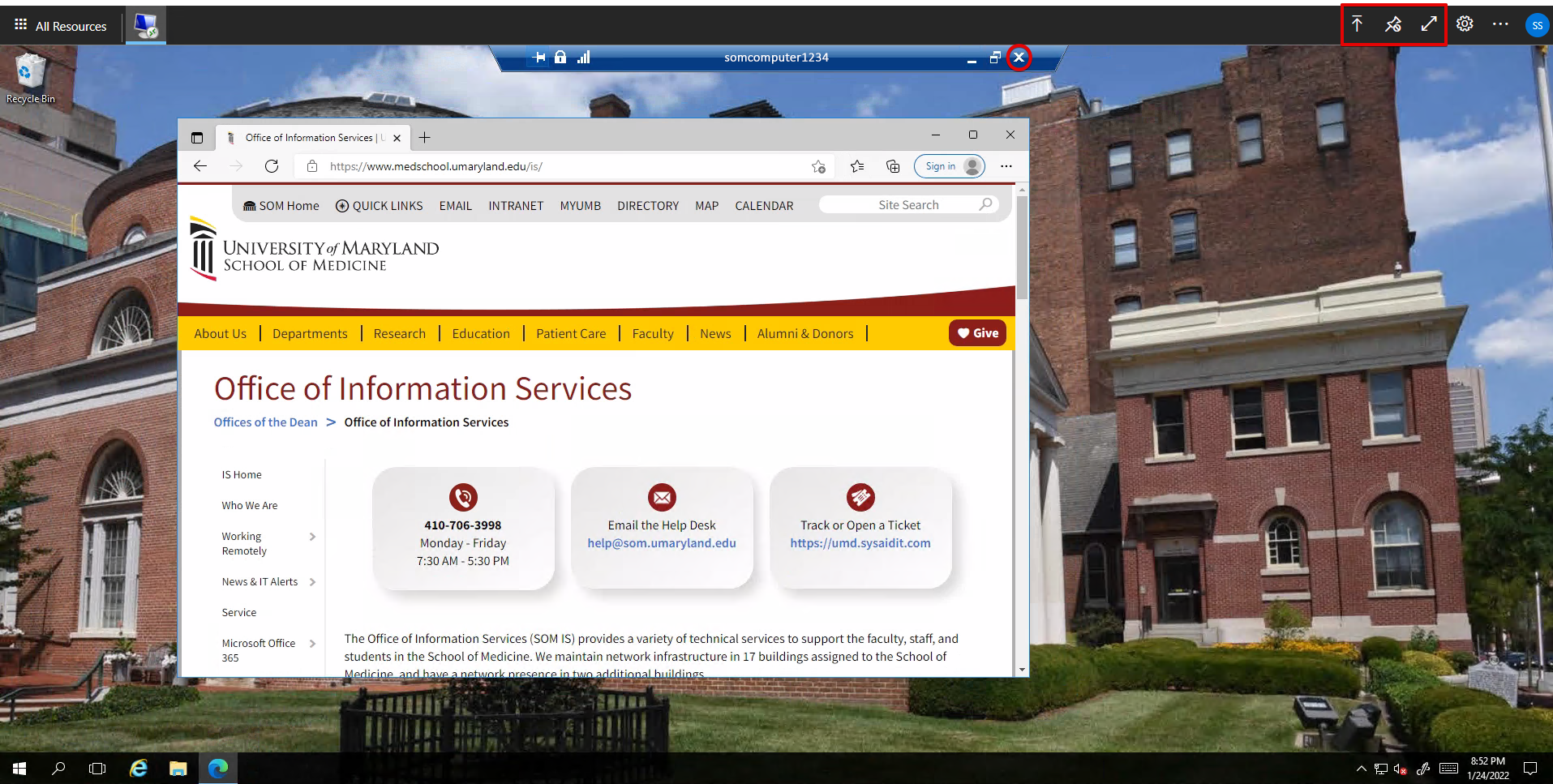
The pushpin icon will hide the black bar and replace it with a pull down tab at the top of the screen:

Click this to bring back the RDP controls.
How to install the Windows App (Optional)
As an alternative to using a web browser to access AVD or RDP, you can install the Windows App. In some cases, it can provide a better experience. This will work for Windows users only.
Open this link:
https://apps.microsoft.com/detail/9N1F85V9T8BN
Click Open in Store.
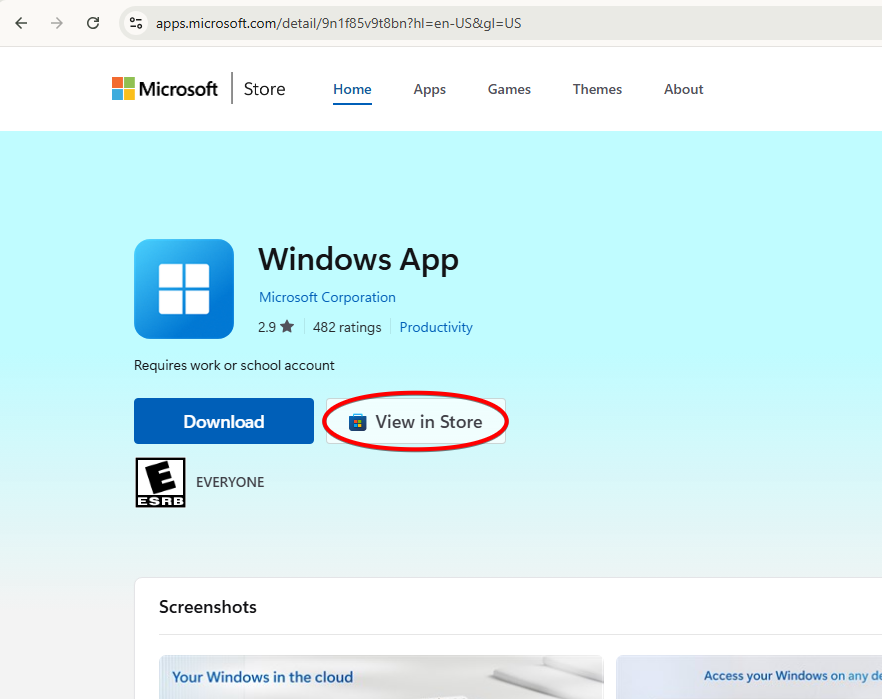
Once in the Microsoft Store, click Get. It will be installed.
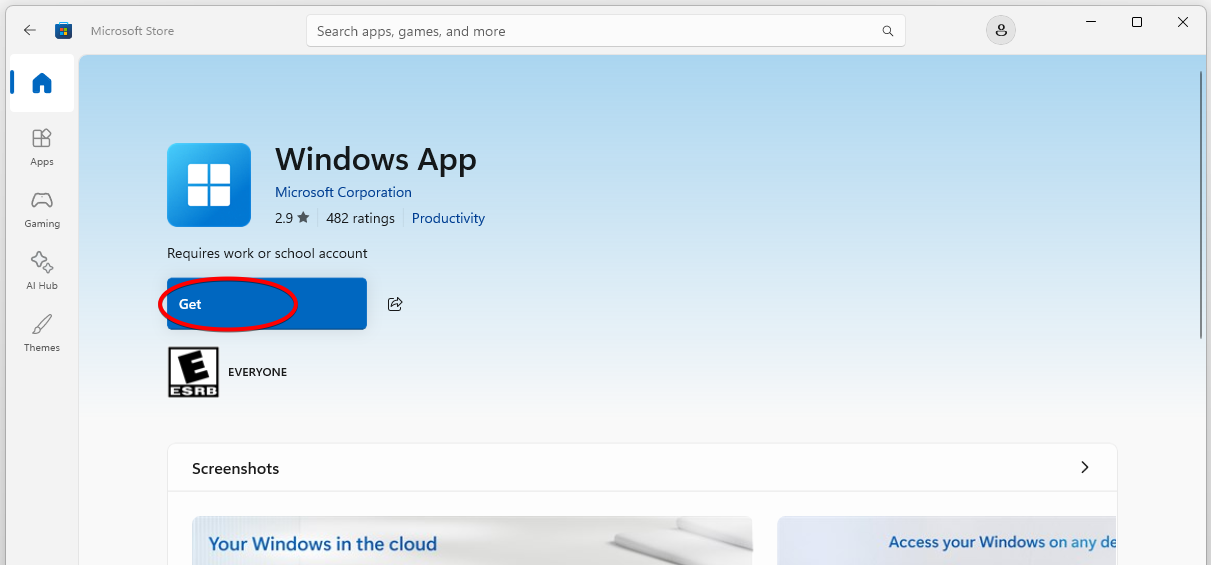
It should take just a few moments to install. You can click Open here in the store, and you can always find it by clicking the Windows start icon and searching for Windows App.
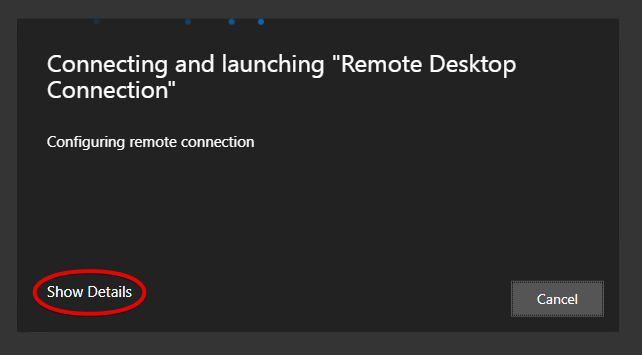
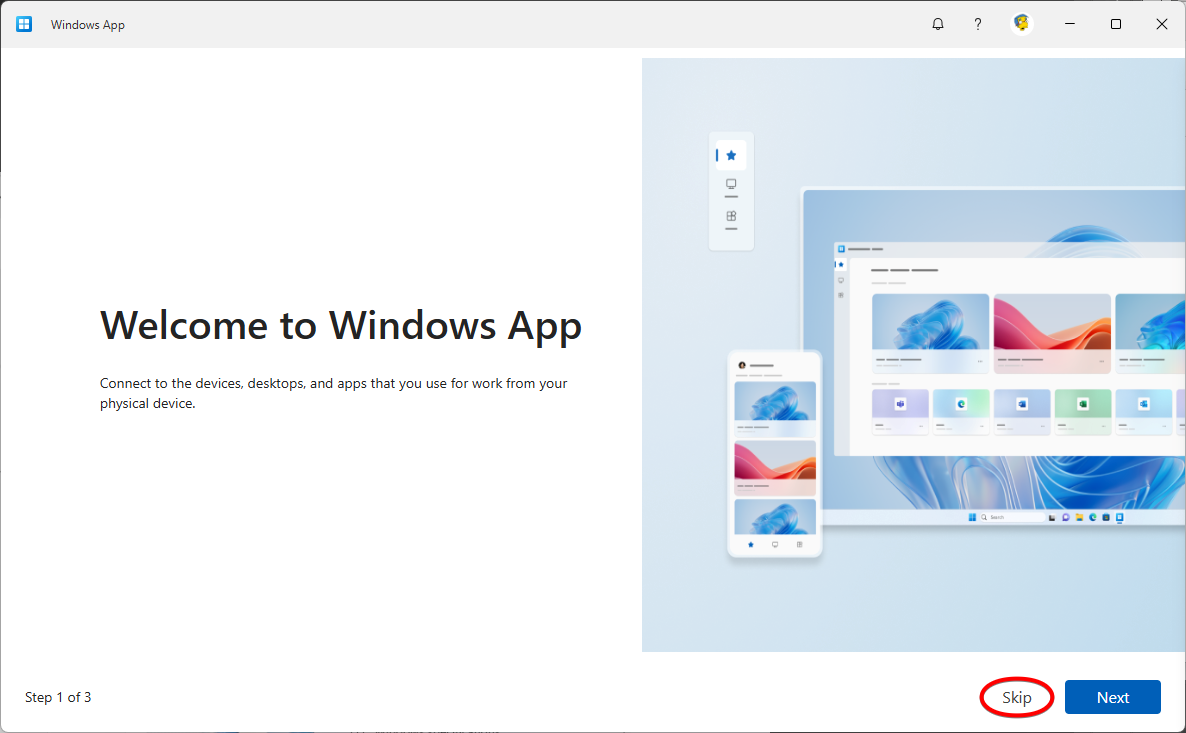
The first time you open Windows App, you'll have a series of slides. You can Skip or click Next/Done through them.
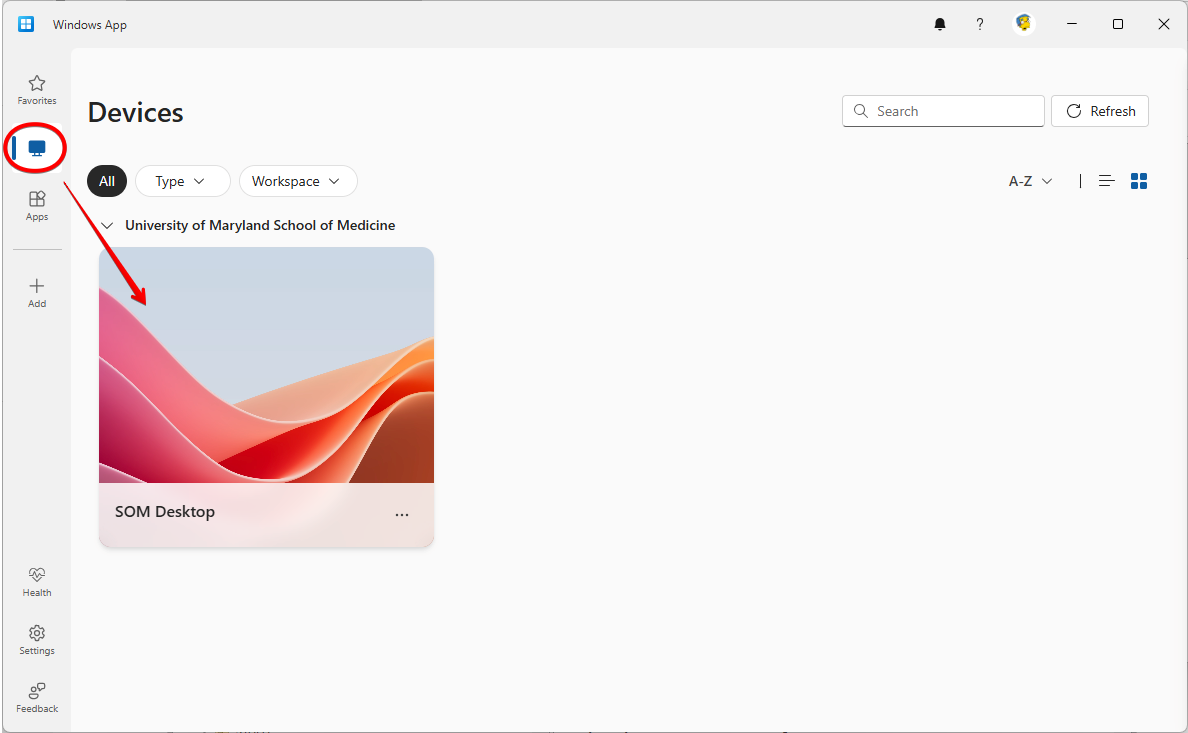
Click Devices on the left to see any Azure Virtual Desktops you have access to.
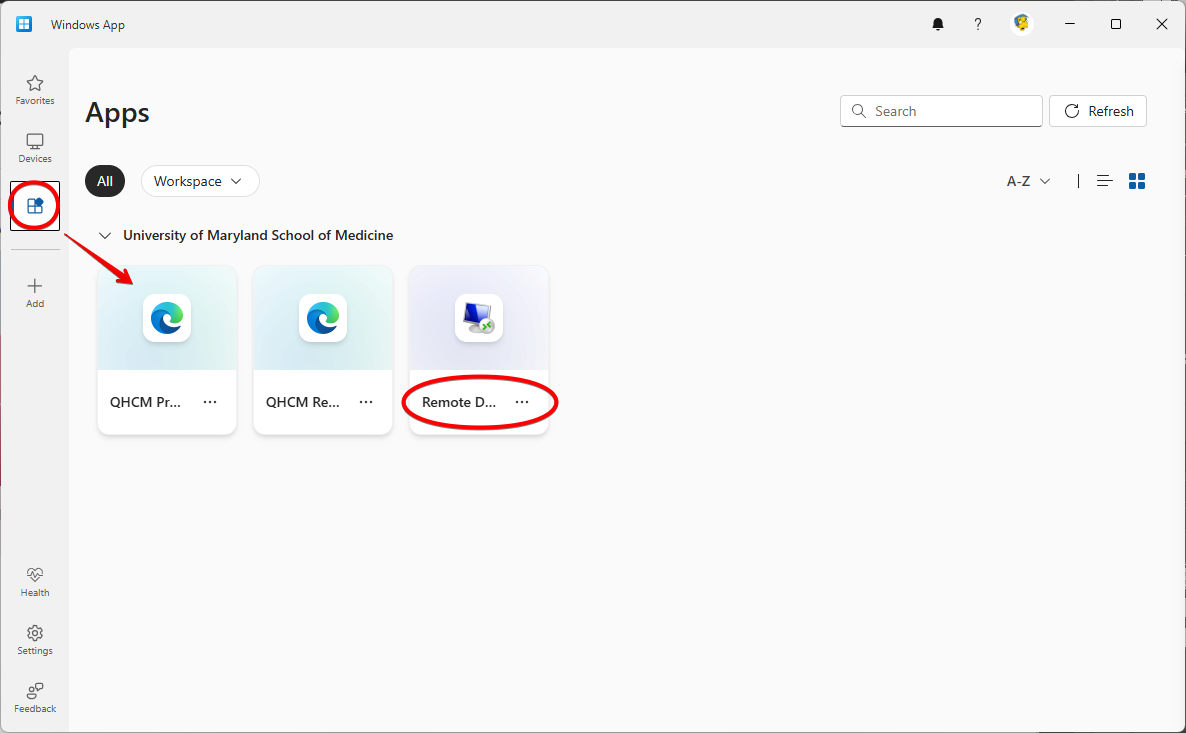
Click Apps on the left to access Remote Desktop or any other applications you have access to.
How to install Azure Virtual Desktop Client for macOS (Optional)
As an alternative to using a web browser to access AVD or RDP, you can install an application. In some cases, it can provide a better experience. This will work for macOS devices that are enrolled in Jamf. If you are using a campus-owned macOS device and you are not enrolled in Jamf, please do so.
If you are using a personal macOS device, please use the web version.
Go to the Self Service Portal.
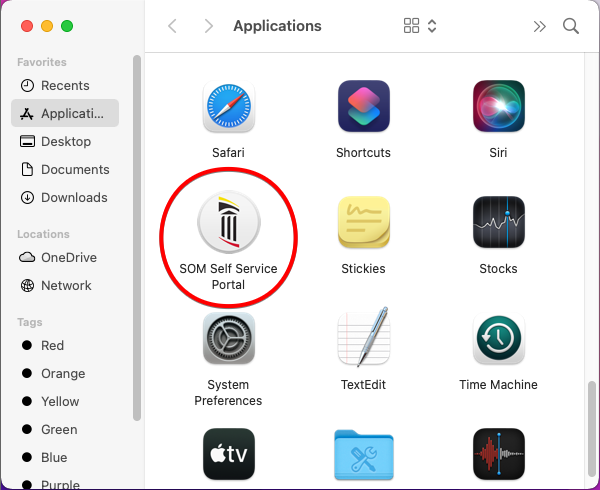
Install the Remote Desktop for Azure Virtual Desktop.
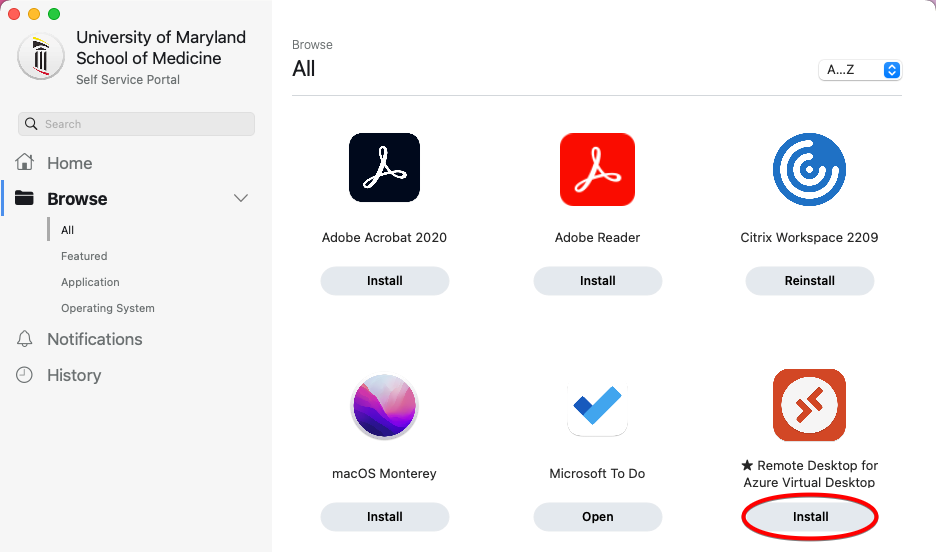
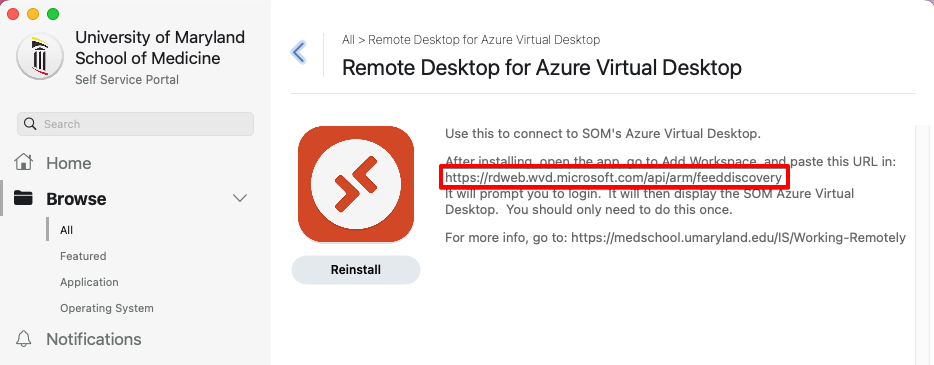
You'll see installation instructions appear, along with another Install button. Install the app, and copy this URL.
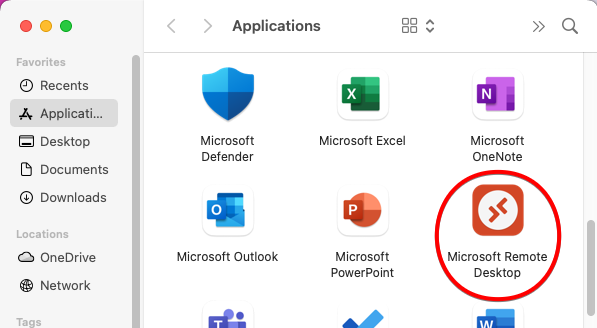
Open the app.
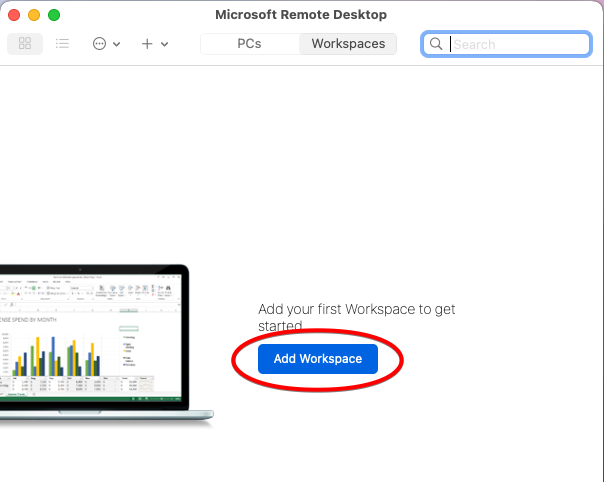
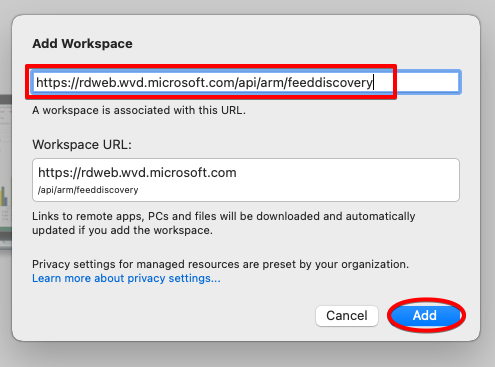
Click Add Workspace.
Paste in the URL you copied a few steps before. Now click Add.
You'll be prompted to sign in with your SOM credentials. You can now connect to SOM's AVD through this app!