
In this article [jump to a section]:
Secure Research Environment
The Secure Research Environment (SRE) is a University virtual environment designed to protect sensitive and restricted research data from misuse and unauthorized access. The SRE is different from the current UMB research computing environment in that the computing resources, data storage and software are not located on a local desktop or laptop computer, but are available in a secure Cloud infrastructure. The SRE minimizes risk to the institution and to the principal investigator of an unlawful exposure of sensitive data.
See also Getting Started with the SRE: https://www.umaryland.edu/cits/research-computing/getting-started-with-the-sre/
For questions related to the SRE REDCap, contact: redcap@umaryland.edu
For questions related to UMMS data, contact: eda-research@umm.edu
For any other SRE-related IT questions not covered here, contact: sre-support@umaryland.edu
How to access the Secure Research Environment
There are two ways to access the SRE: through a web browser, or through the Windows App.
The web browser is the quickest and easiest way in. Any device can use this method, whether it is a Windows or Mac computer, a tablet, SOM-managed or a personal device. The experience will be the same across all devices.
Using the Windows App, however, provides a more robust experience. It supports using multiple monitors, will save certain settings, and in some instances will be faster.
SOM IS-managed computers should have the Windows App installed. Campus workstations managed by other departments (i.e. Surgery or Emergency Medicine) may not have the Windows App. Personal computers may not have the Windows App installed, but you can install it here.
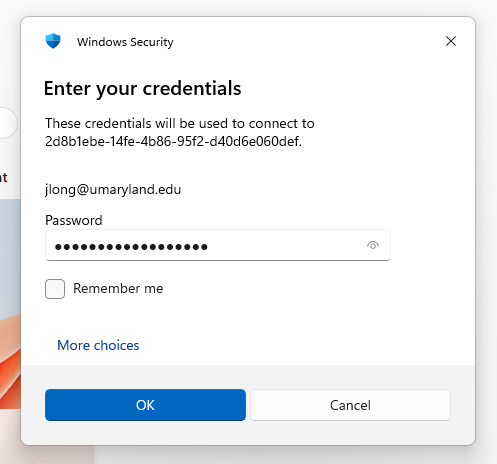
Please note that the login process will differ slightly than other systems using a UMID for login. The SRE will require you to log in with the format UMID@umaryland.edu. The password will be the same as your SOM password.
In some cases, a SOM affiliate may not have a SOM account. In this case, they can be granted a Community System account. Learn more about Community System here.
For a full look at getting started with Windows App, see Microsoft's official documentation: Connect with Windows App - Windows App | Microsoft Learn
Access the Secure Research Environment through a Web Browser
The web version of the Windows App can be access directly here:
https://windows.cloud.microsoft/
You can also find the web version of the Windows App on the M365 home page, which can be accessed at either of the following addresses. Click Apps on the left and find Windows App on the right.
https://portal.office.com
https://m365.cloud.microsoft/
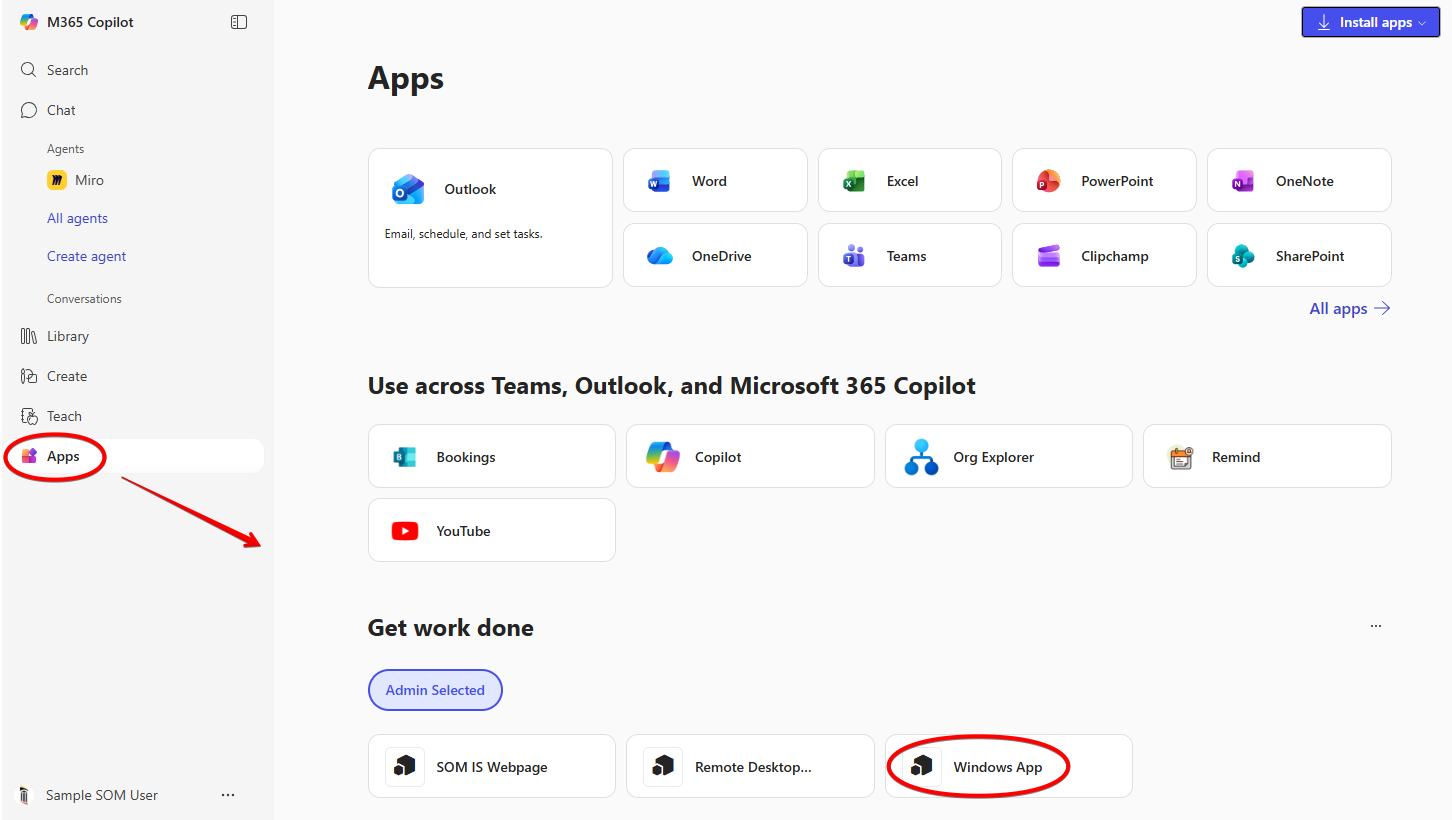
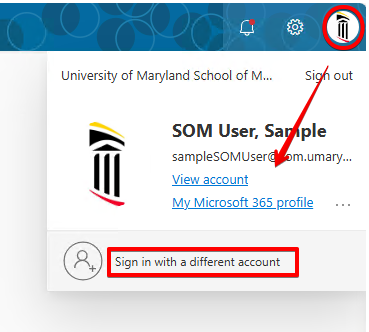
All Secure Research Environments are currently managed by UMB, so you'll need to switch to UMB credentials.
Click on your user icon in the upper right hand corner > Sign in with a different account.
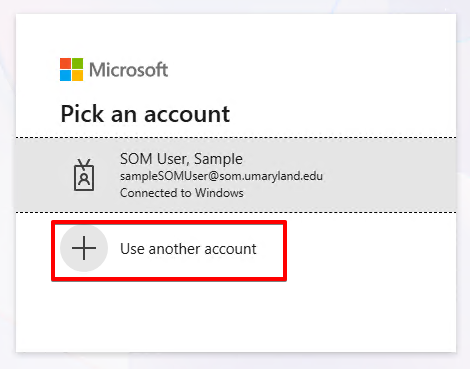
Now choose Use another account.
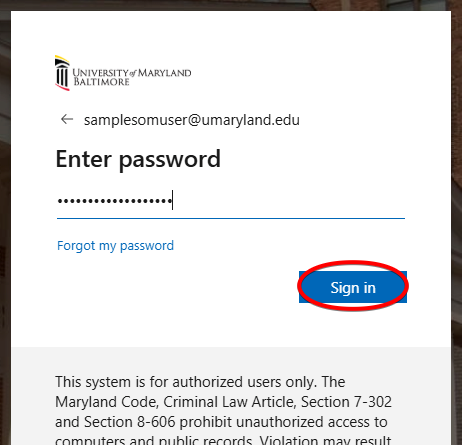
Type in your username, followed by @umaryland.edu
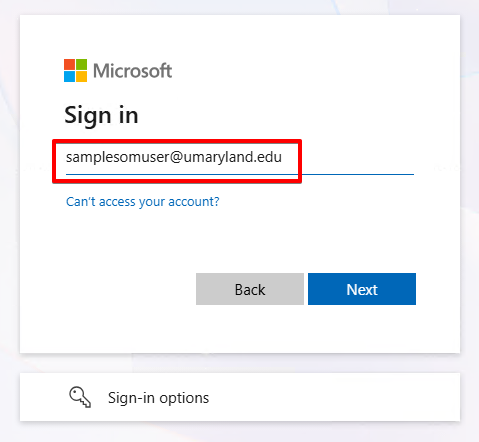
Your password should be the same as your SOM password.
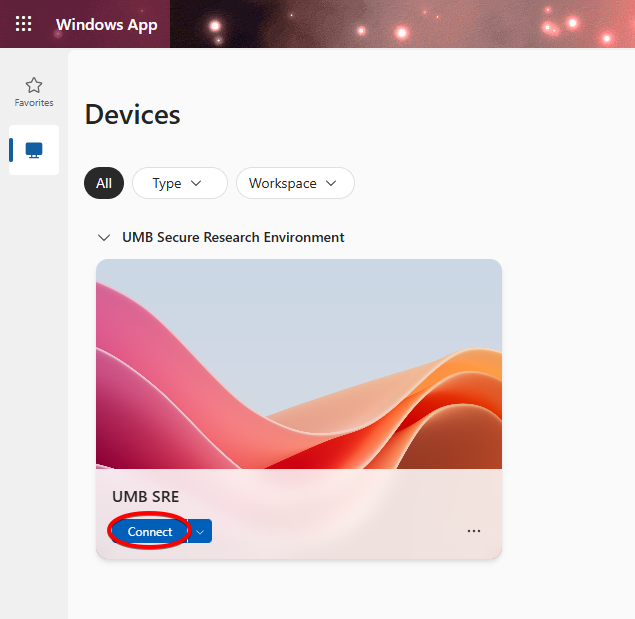
You should now be signed in to the web based Windows App with your UMB account. You'll see the SRE here. Click Connect.
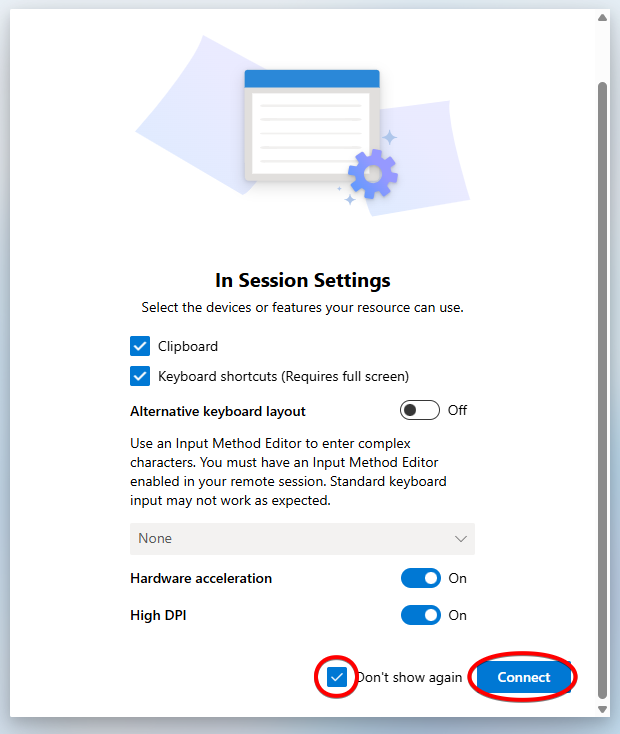
The first time you log in, you'll have In Session Settings. If the clipboard is enabled, you'll be able to copy/paste text into the SRE, but not out. Select Don't show again if you don't wish to see this each time you log in.
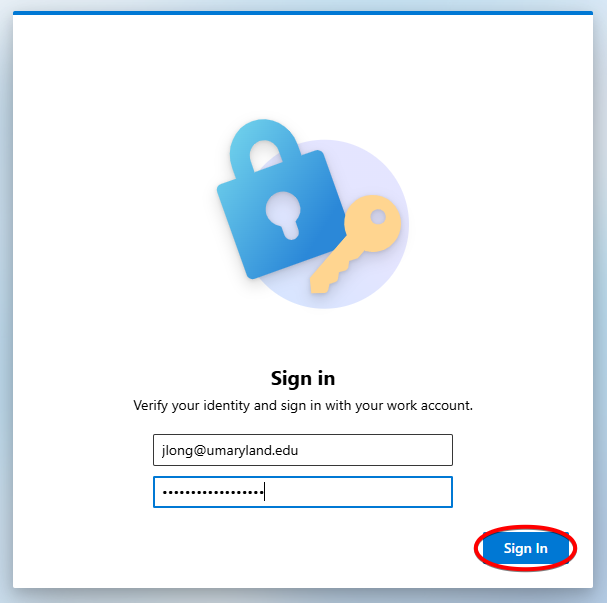
You'll be prompted to login again, this time to the actual SRE. Use your @umaryland.edu credentials again, and the password is the same as your SOM account. Click Sign In.
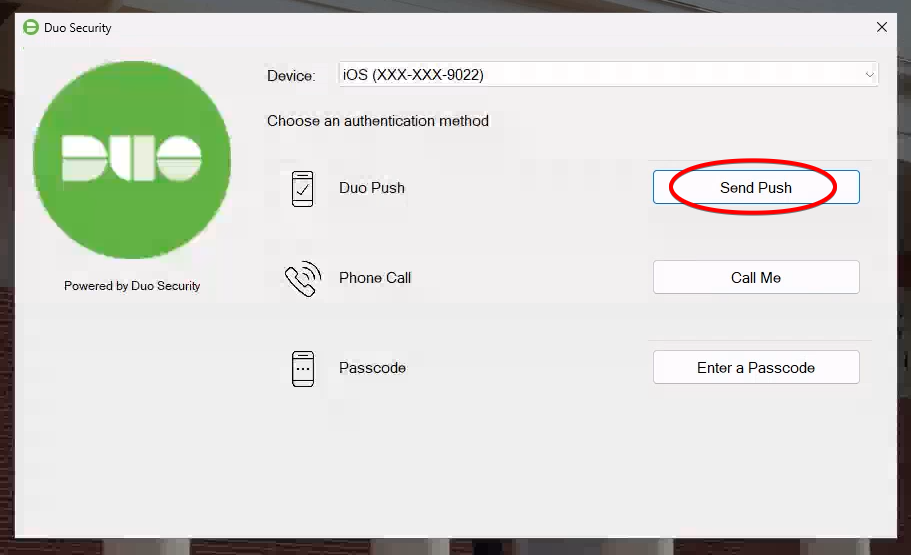
Next you'll receive a DUO prompt. You'll need to click Send Push manually.
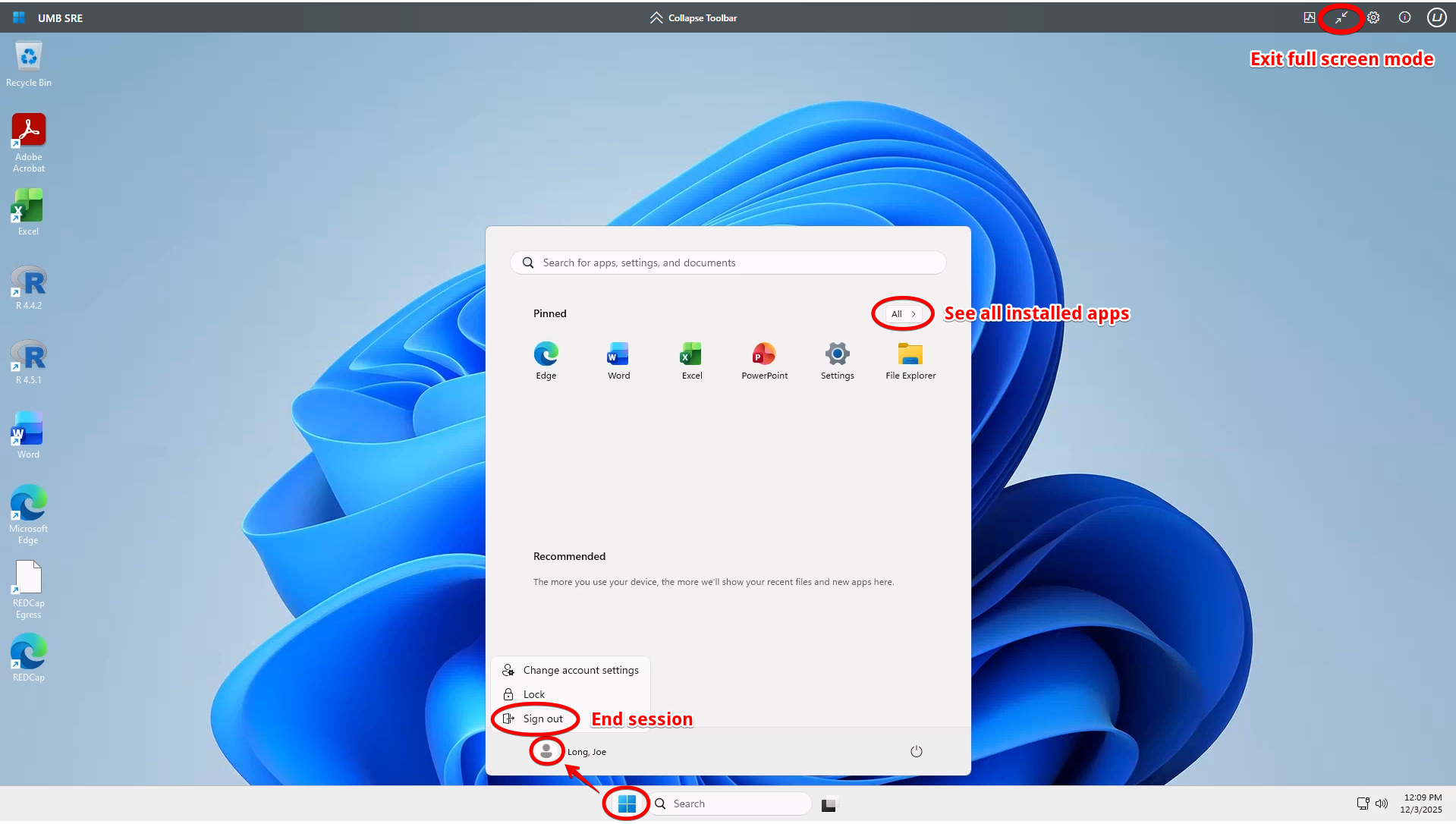
Once on the SRE desktop, you'll find various shortcuts on the desktop, as well as a full list of installed research applications by clicking the Windows icon and All. Click the double arrows in the upper right hand corner to exit full screen mode, or to move the SRE to another monitor. To sign out and end your session, click the Windows icon> your name > Sign out.
Access the Secure Research Environment through the Windows App
The Windows App is installed on SOM IS-managed workstations, and is the recommended way to connect to the SRE.
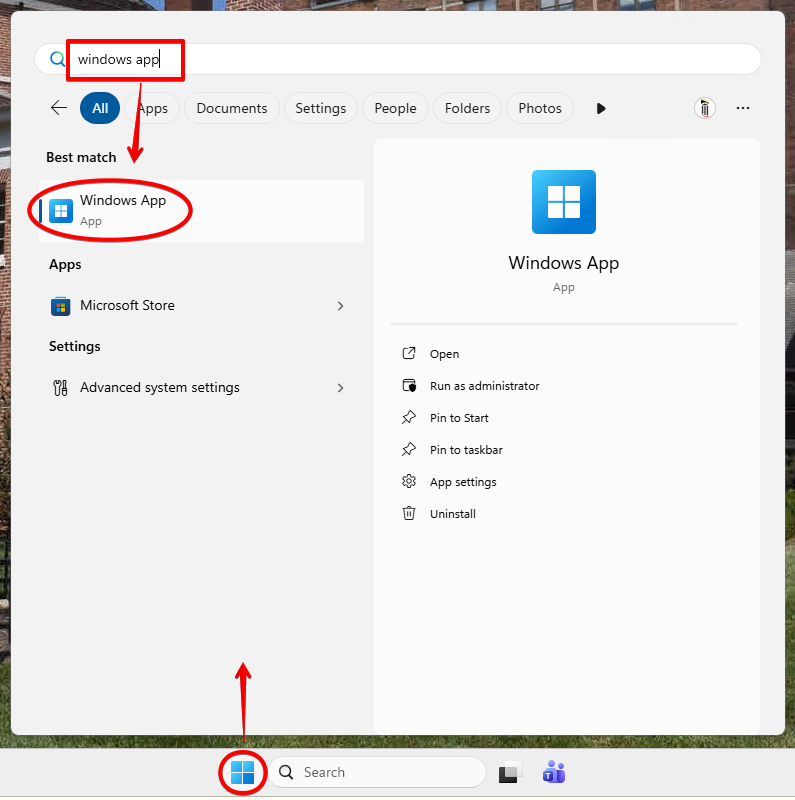
Click the Windows icon and search for the Windows App.
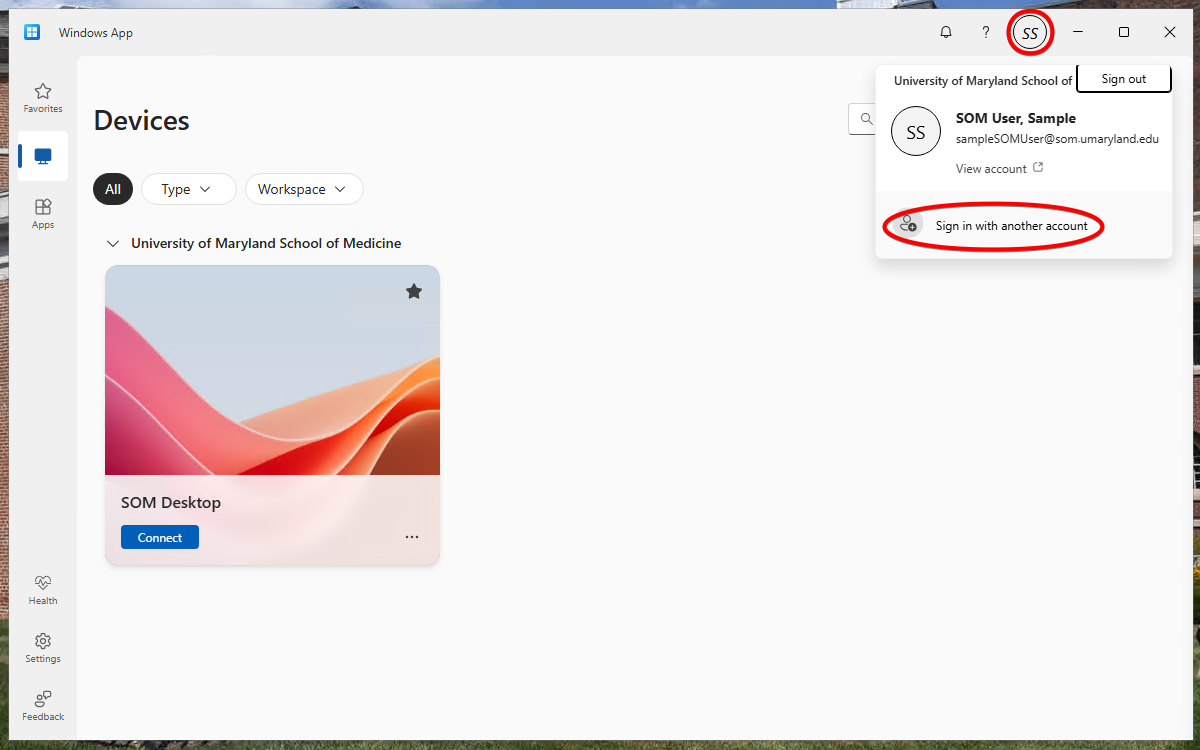
All Secure Research Environments are currently managed by UMB, so you'll need to switch to UMB credentials.
Click on your user icon in the upper right hand corner > Sign in with another account.
Type in your username, followed by @umaryland.edu
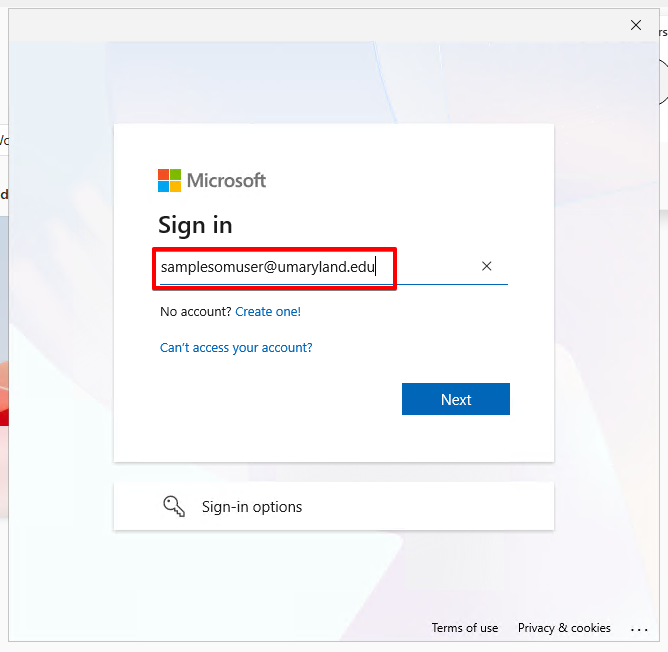
Your password should be the same as your SOM password.
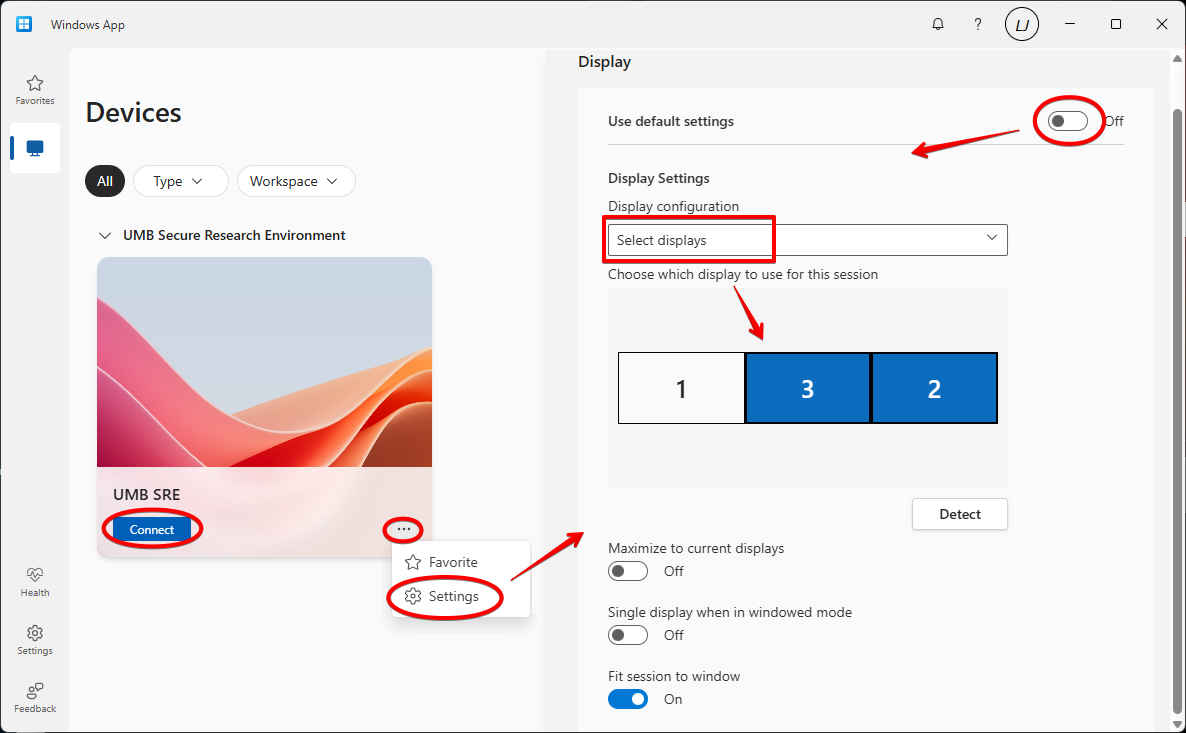
You should now see the SRE as an option to log into. You can simply Connect, or you can click the ellipses to see more options. If you unselect Use default settings, you can choose which displays to use for the SRE desktop.
When you click Connect, you'll be prompted to login again. Click Remember me to skip this step in the future.
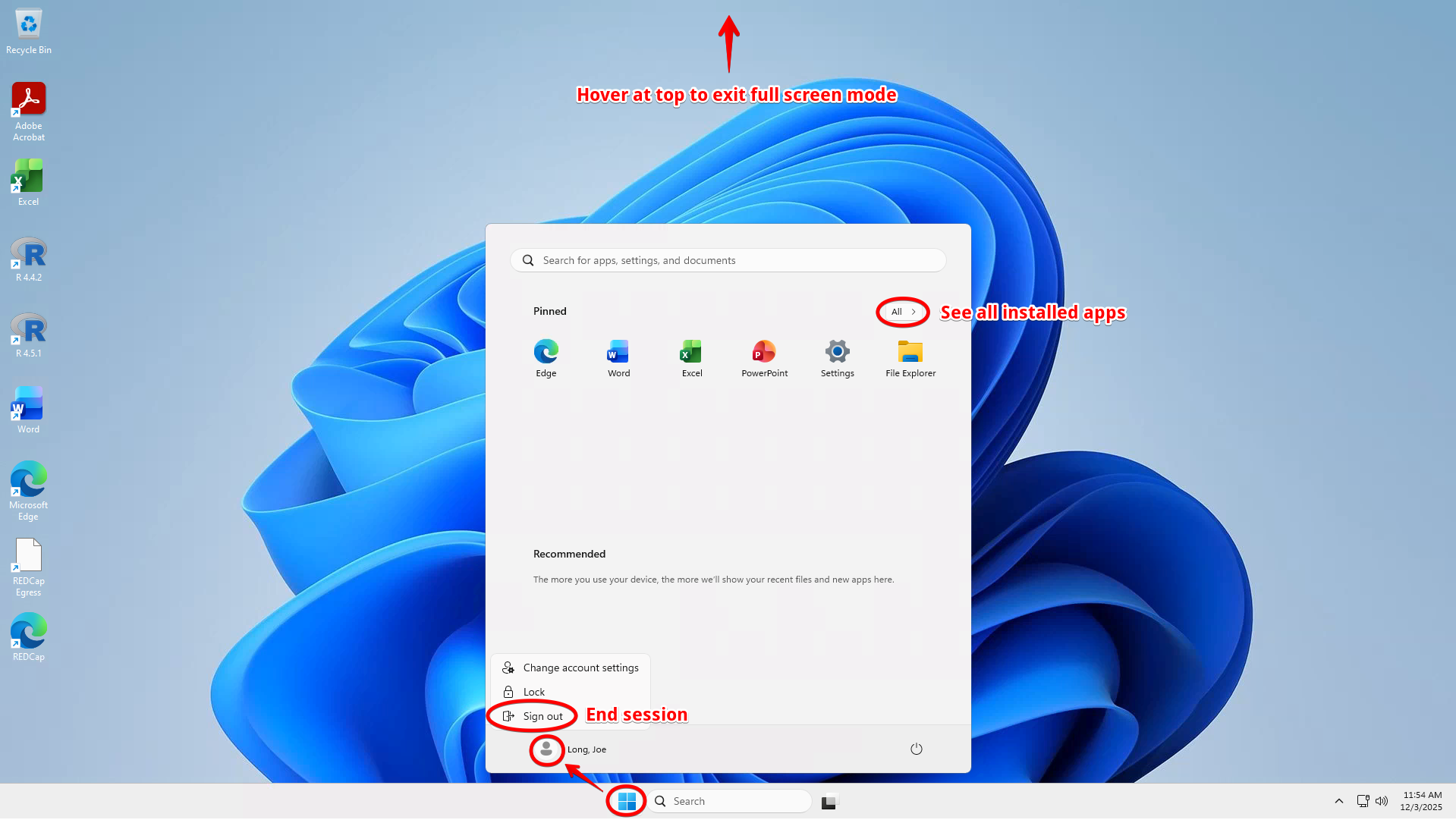
Once on the SRE desktop, you'll find various shortcuts on the desktop, as well as a full list of installed research applications by clicking the Windows icon and All. Hover over the top of the screen to display the handle, and then the double window icon to exit fullscreen mode or to move the SRE to another monitor. To sign out and end your session, click the Windows icon> your name > Sign out.
How to Install the Windows App (Optional)
SOM IS-managed computers should have the Windows App already installed. If it is not, please contact the helpdesk.
If you are supported by department-specific IT team, please reach out to them. A list of those departments and their contact information can be found here.
To install Windows App on your personal machine, download it here: Windows App - Free download and install on Windows | Microsoft Store